

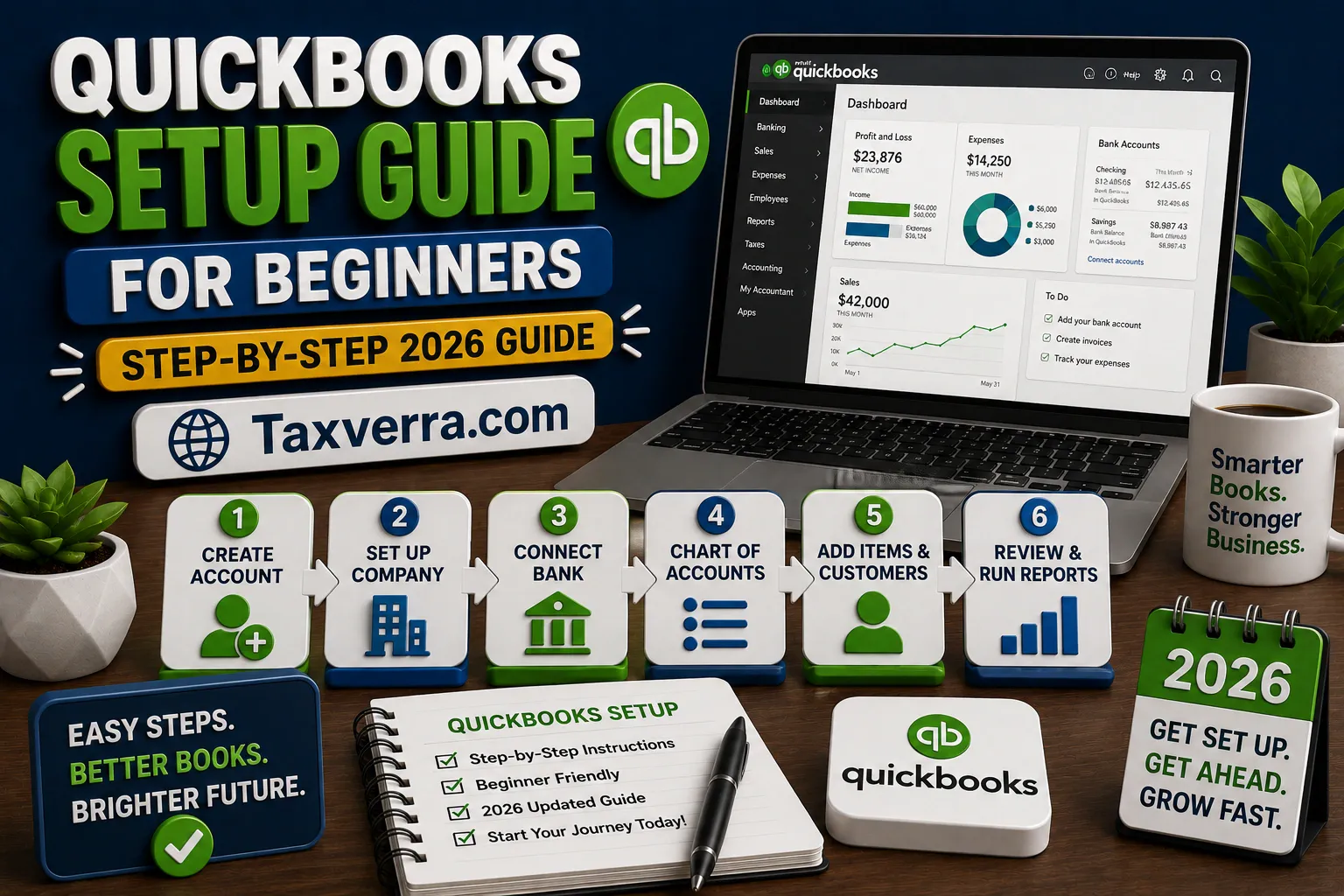
Setting up your accounting system correctly is one of the most important steps for managing your business finances and that’s where QuickBooks comes in. As one of the most widely used accounting platforms in the world, QuickBooks is designed to help freelancers, small business owners, and growing companies track income, manage expenses, and stay on top of taxes with ease. However, for beginners, the initial setup process can feel confusing without proper guidance.
In 2026, QuickBooks has become more powerful than ever, with improved automation, smarter financial insights, and a more user-friendly interface. From connecting your bank account and customizing invoices to setting up your chart of accounts and running reports, each step plays a crucial role in building a reliable financial system. A proper setup ensures that your records are accurate, your reports are meaningful, and your business remains compliant with tax regulations.
The good news is that you don’t need to be an accountant to get started. With the right step-by-step approach, you can configure QuickBooks in a way that fits your business needs perfectly. Whether you’re a freelancer looking to send professional invoices, a small business owner trying to organize expenses, or an entrepreneur preparing for growth, setting up QuickBooks correctly from the beginning will save you time, reduce errors, and give you better control over your finances.
In this beginner-friendly 2026 guide, we’ll walk you through the complete QuickBooks setup process from creating your account to automating your workflows so you can start managing your finances with confidence and clarity.
Understanding QuickBooks Before Setup
Before jumping into the setup process, it’s important to understand what QuickBooks actually does and how it can support your business. Having a clear overview will help you configure the software correctly and avoid common beginner mistakes.
What is QuickBooks?
QuickBooks is a cloud-based accounting software designed to help businesses manage their finances efficiently. It allows you to:
- Track income and expenses
- Create and send invoices
- Manage bills and payments
- Monitor cash flow
- Generate financial reports
In simple terms, QuickBooks replaces manual bookkeeping and spreadsheets with an automated, organized system.
Why Understanding QuickBooks Matters Before Setup
Many beginners rush into setup without understanding the system, which leads to errors later. When you understand how QuickBooks works:
- You can choose the right settings from the start
- Your financial reports will be accurate and meaningful
- You’ll avoid rework and data cleanup later
A proper understanding ensures your accounting system is built correctly from day one.
Key Features You Should Know
Before setup, familiarize yourself with these core features:
1. Invoicing
Create professional invoices, track payments, and send reminders automatically.
2. Expense Tracking
Record and categorize expenses to keep your finances organized and tax-ready.
3. Bank Integration
Connect your bank account to automatically import and reconcile transactions.
4. Financial Reports
Generate reports like Profit & Loss, Balance Sheet, and Cash Flow.
5. Automation
Automate recurring invoices, expense categorization, and payment reminders.
QuickBooks Online vs Desktop
QuickBooks comes in two main versions:
- QuickBooks Online → Cloud-based, accessible anywhere, automatic updates
- QuickBooks Desktop → Installed on a computer, more traditional setup
Recommendation (2026): Most beginners should choose QuickBooks Online for flexibility and ease of use.
How QuickBooks Works (Simple Workflow)
Here’s a basic flow of how QuickBooks manages your finances:
- You connect your bank account
- Transactions are automatically imported
- You categorize income and expenses
- QuickBooks organizes everything into reports
- You use reports to make business decisions
This system helps you track, analyze, and improve your financial performance.
Common Misunderstandings
- QuickBooks is not just for accountants
- You don’t need advanced accounting knowledge
- Setup is not “one-time” it requires proper configuration
Understanding these points helps you use QuickBooks more effectively.
Final Insight
Before you start the setup process, take a few minutes to understand how QuickBooks works. This small step will save you time, reduce errors, and help you build a strong financial foundation for your business.
Core Principle: Double-Entry Accounting
Before using QuickBooks effectively, it’s essential to understand the fundamental concept behind it double-entry accounting. This principle is the backbone of modern accounting systems and ensures that your financial records remain accurate and balanced.
What is Double-Entry Accounting?
Double-entry accounting is a system where every financial transaction affects at least two accounts. In simple terms:
Every debit must have a corresponding credit.
This means that whenever money moves in your business, it is recorded in two places ensuring that your books always stay balanced.
Why It Matters in QuickBooks
QuickBooks is built on double-entry accounting, even if you don’t see it directly. Understanding this concept helps you:
- Avoid errors in financial records
- Understand how transactions impact your accounts
- Generate accurate financial reports
- Maintain proper balance in your books
Without this principle, your accounting system would quickly become unreliable.
Basic Components of Double-Entry Accounting
Here are the key elements you should know:
1. Accounts
Your finances are divided into categories such as:
- Assets (cash, bank, inventory)
- Liabilities (loans, payables)
- Equity (owner’s investment)
- Income (sales, revenue)
- Expenses (rent, utilities, marketing)
2. Debits and Credits
- Debit (Dr) → Increases assets/expenses, decreases liabilities/equity
- Credit (Cr) → Increases liabilities/equity/income, decreases assets
This is the core rule that keeps everything balanced.
Simple Example
Let’s say you receive $1,000 from a customer:
- Bank Account (Asset) → Debit +$1,000
- Sales Revenue (Income) → Credit +$1,000
Both sides are equal, so your books remain balanced.
Accounting Equation
At the heart of double-entry accounting is this equation:
Every transaction in QuickBooks follows this rule automatically.
How QuickBooks Uses Double-Entry
The good news is you don’t need to manually apply this system. QuickBooks handles it for you:
- When you create an invoice → Income increases, receivables increase
- When you record an expense → Expenses increase, cash decreases
- When you receive payment → Cash increases, receivables decrease
QuickBooks does the calculations in the background, but understanding it gives you full control and clarity.
Common Beginner Mistakes
- Thinking only one account is affected
- Misclassifying income and expenses
- Ignoring the impact on reports
These mistakes can lead to incorrect financial statements.
Final Insight
Double-entry accounting may sound technical, but it’s simply a system that ensures every transaction is balanced and accurate. Once you understand this principle, using QuickBooks becomes much easier and more reliable.stand it to avoid mistakes.
Cloud-Based Advantage
One of the biggest reasons businesses choose QuickBooks today is its cloud-based functionality. Unlike traditional accounting systems that are limited to a single computer, cloud accounting allows you to access your financial data anytime, anywhere, and from any device.
What Does “Cloud-Based” Mean?
Cloud-based software stores your data on secure online servers instead of your local computer. This means:
- You don’t need to install software
- Your data is automatically saved and backed up
- You can log in from any device with internet access
In simple terms, your accounting system is always available whether you’re in the office, at home, or on the go.
Key Advantages of Cloud-Based Accounting
1. Access Anytime, Anywhere
With QuickBooks Online, you can manage your finances from:
- Laptop
- Smartphone
- Tablet
Perfect for business owners who travel or work remotely.
2. Real-Time Financial Data
All transactions update instantly, giving you:
- Live cash flow insights
- Up-to-date reports
- Better financial decision-making
No more waiting for end-of-month updates.
3. Easy Collaboration
You can give access to:
- Accountants
- Bookkeepers
- Team members
Multiple users can work simultaneously without confusion.
4. Strong Security & Automatic Backups
Cloud platforms offer:
- Data encryption
- Automatic backups
- Secure login systems
Your financial data is often safer than local storage.
5. Automatic Updates
With cloud software:
- No manual updates required
- New features are added automatically
- Always using the latest version
Saves time and ensures you stay up to date.
6. Seamless Integrations
Cloud-based QuickBooks easily connects with:
- Payment gateways
- E-commerce platforms
- CRM and business tools
This creates a fully connected business system.
Cloud vs Traditional Accounting Software
| Feature | Cloud-Based (QuickBooks Online) | Traditional Software |
|---|---|---|
| Access | Anywhere | Single device |
| Updates | Automatic | Manual |
| Backup | Automatic | Manual |
| Collaboration | Easy | Limited |
| Cost | Subscription | One-time (plus maintenance) |
Are There Any Downsides?
While cloud accounting is powerful, there are a few considerations:
- Requires a stable internet connection
- Subscription-based pricing
- Limited offline access
However, for most businesses in 2026, the benefits far outweigh these limitations.
Final Insight
The cloud-based nature of QuickBooks is what makes it flexible, scalable, and future-ready. It allows you to manage your finances in real time, collaborate easily, and access your data from anywhere making it an ideal choice for modern businesses.ms.
Pre-Setup Preparation (Most Ignored but Most Important Step)
Before you start setting up QuickBooks, there’s one step that most beginners skip and later regret: proper preparation. This stage may seem simple, but it determines how accurate, organized, and efficient your accounting system will be in the long run.
A well-prepared setup = clean books, fewer errors, and better financial insights
A rushed setup = confusion, wrong reports, and time-consuming fixes
Why Pre-Setup Preparation Matters
QuickBooks is powerful, but it relies on the data and structure you provide. If your setup is messy from the beginning:
- Your reports will be inaccurate
- Transactions will be misclassified
- Fixing errors later will be time-consuming
Spending 30–60 minutes on preparation can save you hours (or even days) later.
What You Need Before Setting Up QuickBooks
Here’s a complete checklist to prepare before starting:
1. Business Information
Keep your basic details ready:
- Business name and address
- Industry type
- Business structure (sole proprietor, partnership, company)
- Tax registration details (GST/VAT, if applicable)
This ensures QuickBooks sets up your account correctly from the start.
2. Bank and Financial Accounts
Gather details for all financial accounts:
- Business bank accounts
- Credit cards
- Payment platforms (PayPal, Stripe, etc.)
These will be connected for automatic transaction tracking.
3. Opening Balances
This is one of the most important steps:
- Bank balance
- Cash on hand
- Outstanding invoices (money you’re owed)
- Bills you need to pay
Entering correct opening balances ensures accurate reports from day one.
4. List of Income and Expenses
Prepare a basic structure of your finances:
- Income sources (sales, services, etc.)
- Expense categories (rent, utilities, marketing, etc.)
This helps you customize your chart of accounts properly.
5. Customers and Vendors
Have a list of:
- Regular customers/clients
- Suppliers or vendors
Adding them early saves time later when creating invoices and bills.
6. Tax Information
Prepare your tax setup:
- Applicable tax rates (GST, VAT, etc.)
- Tax registration numbers
- Filing frequency
This ensures compliance and avoids mistakes in tax reporting.
7. Previous Financial Data (Optional)
If you’re switching from another system:
- Export data (CSV files)
- Clean and organize records
- Decide how much historical data to import
You can start fresh or import past data depending on your needs.
Common Mistakes to Avoid
- Starting without knowing your opening balances
- Mixing personal and business finances
- Not planning your expense categories
- Ignoring tax setup
- Importing messy or duplicate data
These mistakes can lead to incorrect financial reports and confusion.
Pro Tips for a Smooth Setup
- Start at the beginning of a month or financial year
- Keep your data clean and organized
- Use simple categories first (you can refine later)
- Double-check opening balances before proceeding
Final Insight
Pre-setup preparation might feel like an extra step, but it’s actually the foundation of your entire accounting system. Taking the time to organize your data before setting up QuickBooks ensures that everything runs smoothly, accurately, and efficiently from day one.
Step-by-Step QuickBooks Setup (Detailed 2026 Guide)
Now that you’ve completed your preparation, it’s time to set up QuickBooks properly. Follow this step-by-step guide to build a clean, accurate, and fully functional accounting system from day one.
Step 1: Create Your QuickBooks Account
- Go to the QuickBooks website
- Click Sign Up / Free Trial
- Enter your email and password
- Choose your subscription plan
Tip: Start with a trial to explore features before committing.
Step 2: Enter Business Information
Once logged in, QuickBooks will ask for your business details:
- Business name
- Industry type
- Business structure
- Tax details
This helps QuickBooks automatically create a basic chart of accounts tailored to your business.
Step 3: Set Up Your Chart of Accounts
This is the backbone of your accounting system.
What to Do:
- Review default accounts
- Add custom categories (if needed)
- Remove unused accounts
Example:
- Income → Sales, Services
- Expenses → Rent, Marketing, Utilities
Keep it simple at first you can refine later.
Step 4: Connect Your Bank Account
- Go to Banking → Link Account
- Search for your bank
- Enter login credentials securely
- Sync transactions
This allows automatic transaction import and real-time tracking.
Step 5: Enter Opening Balances
Add your starting financial data:
- Bank balances
- Outstanding invoices (accounts receivable)
- Unpaid bills (accounts payable)
This ensures your reports start accurately from day one.
Step 6: Set Up Invoicing
- Go to Sales → Invoices
- Customize invoice template (logo, colors)
- Add payment terms (Net 15, Net 30)
- Enable online payments
You can also create recurring invoices for regular clients.
Step 7: Configure Expense Tracking
- Go to Expenses → Settings
- Categorize expenses properly
- Upload receipts
- Set rules for automatic categorization
This helps with budgeting and tax deductions.
Step 8: Set Up Taxes (GST/VAT)
- Go to Taxes → Settings
- Add your tax rates
- Assign default tax categories
This ensures compliance and accurate tax reporting.
Step 9: Add Users and Permissions
- Go to Settings → Manage Users
- Invite team members or accountant
- Assign roles (Admin, Standard, Reports only)
Control who can access what.
Step 10: Run Initial Reports
Generate your first reports:
- Profit & Loss
- Balance Sheet
- Cash Flow
Verify that all data is accurate.
Step 11: Set Up Automation
Save time with automation:
- Recurring invoices
- Payment reminders
- Bank rules
- Scheduled reports
Automation reduces manual work and errors.
Step 12: Integrate Apps (Optional)
Connect tools like:
- Payment gateways (Stripe, PayPal)
- E-commerce platforms
- CRM systems
This creates a complete business ecosystem.
Step 13: Install the Mobile App
Download QuickBooks mobile app to:
- Send invoices on the go
- Track expenses
- Capture receipts
Ideal for managing finances anywhere.
Final Setup Checklist
Account created
Business info added
Bank connected
Chart of accounts customized
Opening balances entered
Invoicing set up
Expenses tracked
Taxes configured
Reports verified
Automation enabled
Common Mistakes to Avoid
- Skipping opening balances
- Overcomplicating chart of accounts
- Not reconciling bank transactions
- Ignoring tax setup
Final Insight
Setting up QuickBooks correctly is not just a technical step it’s the foundation of your financial system. Once everything is in place, you’ll be able to track your finances accurately, make better decisions, and grow your business with confidence.
Best Practices:
Keep It Simple
Avoid creating too many accounts.
Use Meaningful Names
Clear naming improves reporting.
Avoid Duplication
Duplicate accounts create confusion.
Advanced Insight:
A well-designed COA allows you to:
- Analyze profit sources
- Control expenses
- Make strategic decisions
Connecting Bank & Credit Card Accounts
One of the most powerful features of QuickBooks is its ability to connect directly with your bank and credit card accounts. This allows transactions to be imported automatically, saving time and reducing manual data entry.
Why This Step is Important
Connecting your accounts enables:
- Automatic transaction import (no manual entry)
- Real-time financial tracking
- Faster bank reconciliation
- Reduced errors in bookkeeping
This is the step that turns QuickBooks into a fully automated accounting system.
Step-by-Step: How to Connect Your Bank Account
1. Go to Banking Section
- From the dashboard, click Banking (or Transactions)
- Select Link Account
2. Search for Your Bank
- Enter your bank name in the search bar
- Choose your bank from the list
Most major banks are supported.
3. Enter Login Credentials
- Use your online banking username and password
- Complete any verification (OTP, security questions)
QuickBooks uses secure encryption, so your data remains protected.
4. Select Accounts to Connect
- Choose which accounts you want to link:
- Current account
- Savings account
- Credit card
You can connect multiple accounts at once.
5. Choose Date Range
- Select how far back you want transactions to import
- Last 30 days
- Last 90 days
- Custom range
Tip: Start from the beginning of your financial period.
6. Confirm and Sync
- Click Connect
- QuickBooks will start importing transactions automatically
Initial sync may take a few minutes.
What Happens After Connecting?
Once connected:
- Transactions appear in the “For Review” tab
- You categorize them (income, expenses, etc.)
- QuickBooks learns your patterns over time
This makes future categorization faster and automated.
Smart Features You Can Use
- Bank Rules → Auto-categorize transactions
- Auto-Match → Match transactions with invoices/bills
- Recurring Transactions → Save time on regular entries
These features reduce manual work significantly.
Common Issues & Fixes
Bank Not Found
- Use manual upload (CSV file)
Connection Errors
- Re-enter login details
- Check bank server status
Duplicate Transactions
- Avoid importing same date range twice
Is It Safe to Connect Your Bank?
Yes. QuickBooks uses:
- Bank-level encryption
- Secure authentication
- Read-only access (cannot move money)
Your data is safe and protected.
Pro Tips
- Connect accounts at the start of setup
- Review transactions daily or weekly
- Create bank rules early to automate work
- Reconcile accounts monthly
Final Insight
Connecting your bank and credit card accounts is one of the most important steps in QuickBooks setup. It transforms your accounting from manual bookkeeping into an automated, real-time system, helping you stay organized and make better financial decisions.
Managing Customers, Vendors & Products in QuickBooks
Once your bank accounts are connected, the next important step is organizing your customers, vendors, and products/services. This ensures your invoicing, expense tracking, and reporting are accurate and efficient.
Think of this step as building the foundation of your daily transactions in QuickBooks.
Managing Customers (Clients)
Customers are the people or businesses you sell to.
How to Add Customers
- Go to Sales → Customers
- Click New Customer
- Enter details:
- Name
- Phone number
- Billing address
- Payment terms
Why This Matters
- Faster invoice creation
- Better tracking of payments
- Clear customer history
You can also track:
- Outstanding invoices
- Payment status
- Total sales per customer
Managing Vendors (Suppliers)
Vendors are the people or businesses you buy from.
How to Add Vendors
- Go to Expenses → Vendors
- Click New Vendor
- Enter details:
- Vendor name
- Contact info
- Payment terms
Why This Matters
- Track bills and payments
- Monitor expenses by vendor
- Avoid missed payments
You can easily see:
- Unpaid bills
- Payment history
- Total expenses per vendor
Managing Products & Services
Products and services are what you sell to customers.
How to Add Products/Services
- Go to Sales → Products & Services
- Click New
- Choose type:
- Inventory (physical goods)
- Non-inventory
- Service
Enter Key Details
- Name and description
- Price or rate
- Income account
- Expense account (if applicable)
Why This Matters
- Faster invoice creation
- Consistent pricing
- Accurate income tracking
This also helps in generating sales reports and profit analysis.
How They Work Together
Here’s how everything connects:
- You create an invoice → linked to a customer
- You record a bill → linked to a vendor
- You add a product/service → linked to income/expense accounts
This creates a complete financial ecosystem inside QuickBooks.
Common Mistakes to Avoid
- Not adding customers before invoicing
- Using inconsistent product names
- Not setting default payment terms
- Mixing vendors and customers
Pro Tips
- Use clear naming (e.g., “Website Design Service”)
- Set default payment terms (Net 15, Net 30)
- Regularly update customer/vendor lists
- Group similar products/services for better reporting
Final Insight
Managing customers, vendors, and products correctly in QuickBooks ensures that your sales, expenses, and reports stay accurate and organized. It also saves time when creating invoices and tracking payments, making your overall workflow smoother and more professional.
Invoicing System Setup (Revenue Engine) in QuickBooks
Your invoicing system is the heart of your cash flow it’s how your business gets paid. Setting up invoicing correctly in QuickBooks ensures you get paid faster, more consistently, and with fewer errors.
Think of this as building your revenue engine.
Why Invoicing Setup is Critical
A properly configured invoicing system helps you:
- Get paid on time (or faster)
- Maintain professional branding
- Track outstanding payments
- Automate reminders and follow-ups
Poor invoicing setup = delayed payments + cash flow problems
Step-by-Step: How to Set Up Invoicing
1. Go to Invoicing Section
- Navigate to Sales → Invoices
- Click Create Invoice
2. Customize Your Invoice Template
Make your invoices look professional:
- Add your business logo
- Choose colors and layout
- Include business details (name, address, contact)
A clean, branded invoice builds trust and credibility.
3. Set Payment Terms
Define when you expect payment:
- Due on receipt
- Net 7 / Net 15 / Net 30
Clear terms reduce confusion and late payments.
4. Enable Online Payments
Activate payment options like:
- Credit/debit cards
- Bank transfer
- Digital wallets (depending on region)
This makes it easier for clients to pay instantly.
5. Set Up Recurring Invoices
For regular clients:
- Create recurring invoices (weekly/monthly)
- Automate sending
Saves time and ensures consistent revenue.
6. Enable Payment Reminders
- Turn on automatic reminders
- Schedule notifications before/after due date
Helps reduce unpaid invoices without manual follow-up.
Tracking Payments & Receivables
QuickBooks allows you to monitor:
- Paid vs unpaid invoices
- Overdue payments
- Customer balances
This gives you full control over your accounts receivable.
Automation Features
Boost efficiency with:
- Auto-send invoices
- Auto-reminders
- Auto-matching payments
Automation = less manual work + faster payments
Common Invoicing Mistakes
- Missing payment terms
- Not enabling online payments
- Sending unprofessional invoices
- Forgetting follow-ups
- Incorrect pricing or tax settings
Pro Tips to Get Paid Faster
- Send invoices immediately after work is completed
- Keep invoices simple and clear
- Offer multiple payment options
- Follow up politely but consistently
- Use shorter payment terms if possible
Final Insight
A well-optimized invoicing system in QuickBooks is more than just billing it’s your revenue engine. When set up correctly, it improves cash flow, reduces delays, and helps you maintain a professional image while growing your business.
Expense Tracking & Categorization in QuickBooks
Tracking and categorizing expenses correctly is one of the most important parts of managing your business finances. It ensures that you know where your money is going, helps you control costs, and makes tax filing much easier.
In simple terms, this is how you turn raw transactions into meaningful financial insights.
Why Expense Tracking Matters
A proper expense system helps you:
- Monitor spending in real time
- Identify unnecessary costs
- Maximize tax deductions
- Maintain accurate financial records
Without proper tracking, your reports will be incomplete or misleading.
Step-by-Step: How to Track Expenses
1. Record Expenses
You can record expenses in QuickBooks by:
- Manually entering them
- Importing via bank connection
- Uploading receipts
Most users rely on bank integration for automation.
2. Categorize Each Expense
Every expense must be assigned a category (account), such as:
- Rent
- Utilities
- Marketing
- Office supplies
- Travel
These categories come from your chart of accounts.
3. Use Proper Labels (Classes/Tags)
For better tracking, you can use:
- Classes → Track by department or project
- Tags → Add custom labels
This helps in deeper analysis of spending.
4. Attach Receipts
- Upload receipts via desktop or mobile app
- Link them to transactions
This keeps your records audit-ready and organized.
5. Review & Approve Transactions
- Go to Banking → For Review
- Match or categorize each transaction
- Confirm accuracy
Regular review ensures clean books.
Automation Features
QuickBooks can automate expense tracking:
- Bank Rules → Auto-categorize recurring expenses
- Recurring Transactions → Auto-record regular payments
- Auto-Matching → Match bank transactions with entries
This saves time and reduces manual work.
How Categorization Impacts Reports
Correct categorization directly affects:
- Profit & Loss statement
- Expense reports
- Tax calculations
Misclassified expenses = inaccurate reports.
Common Mistakes to Avoid
- Mixing personal and business expenses
- Using wrong categories
- Ignoring small expenses
- Not reviewing transactions regularly
These mistakes can lead to financial confusion.
Pro Tips for Better Expense Management
- Keep categories simple and consistent
- Review expenses weekly
- Use automation rules early
- Separate business and personal accounts
- Track every expense (even small ones)
Final Insight
Expense tracking and categorization in QuickBooks is not just about recording spending it’s about gaining control and clarity over your finances. When done correctly, it helps you reduce costs, improve profitability, and make smarter business decisions.
Bank Reconciliation (Most Critical Control) in QuickBooks
Bank reconciliation is one of the most important financial controls in your accounting system. It ensures that your records in QuickBooks match your actual bank and credit card statements.
In simple terms:
Reconciliation = Verifying that your books are accurate and complete
Why Bank Reconciliation is Critical
Regular reconciliation helps you:
- Detect errors and missing transactions
- Prevent fraud or unauthorized activity
- Ensure accurate financial reports
- Maintain clean and reliable books
Without reconciliation, your financial data can quickly become incorrect and misleading.
How It Works (Simple Concept)
You compare two things:
- QuickBooks records
- Bank statement
If both match = Your books are correct
If not = Something needs fixing
Step-by-Step: How to Reconcile in QuickBooks
1. Go to Reconciliation Tool
- Navigate to Accounting → Reconcile
- Select the account (bank or credit card)
2. Enter Statement Details
- Enter:
- Ending balance
- Statement date
These come from your bank statement.
3. Match Transactions
- Compare transactions in QuickBooks with your bank statement
- Tick/check each matching transaction
Focus on:
- Dates
- Amounts
- Transaction types
4. Check the Difference
- The goal is to make the difference = 0
If it’s zero → Your accounts are balanced
If not → Find and fix discrepancies
5. Complete Reconciliation
- Click Finish/Complete
- QuickBooks saves the reconciliation report
This confirms your books are accurate for that period.
Common Reconciliation Issues
Missing Transactions
- Not recorded in QuickBooks
Duplicate Entries
- Same transaction entered twice
Incorrect Amounts
- Typing errors or wrong values
Unmatched Transactions
- Transactions not cleared by bank yet
These issues must be fixed before completing reconciliation.
Pro Tips for Accurate Reconciliation
- Reconcile monthly (or weekly for high activity)
- Always use official bank statements
- Avoid editing past reconciled transactions
- Investigate discrepancies immediately
Why It’s Called a “Control”
Bank reconciliation acts as a financial checkpoint:
- Confirms your data is accurate
- Detects fraud early
- Keeps your accounting system trustworthy
This is why accountants consider it the most critical control.
Final Insight
If you do only one thing right in QuickBooks, make sure it’s bank reconciliation. It ensures that everything else reports, taxes, and decisions is based on accurate and reliable data.
Financial Reports & Analysis in QuickBooks
Once your setup is complete and transactions are recorded, the real power of QuickBooks comes from financial reports and analysis. These reports help you understand your business performance, track profitability, and make smarter decisions.
In simple terms:
Reports turn your data into insights.
Why Financial Reports Matter
Accurate reports help you:
- Measure business performance
- Track profits and losses
- Monitor cash flow
- Make informed financial decisions
- Prepare for taxes and compliance
Without reports, your accounting data has no real value.
Key Financial Reports You Must Know
1. Profit & Loss Statement (Income Statement)
Shows your income, expenses, and profit over a specific period.
Helps you answer:
- Are you making money?
- Where are you spending the most?
2. Balance Sheet
Shows your business’s financial position:
- Assets (what you own)
- Liabilities (what you owe)
- Equity (your ownership)
Gives a snapshot of your financial health.
3. Cash Flow Statement
Tracks how money moves in and out of your business.
Helps you understand:
- Cash availability
- Liquidity
- Ability to pay bills
4. Expense Report
Breaks down your spending by category.
Helps you:
- Identify unnecessary costs
- Control your budget
5. Accounts Receivable & Payable Reports
- Receivables → Money customers owe you
- Payables → Money you owe vendors
Helps manage cash flow and payments.
How to Generate Reports in QuickBooks
- Go to Reports section
- Select the report you need
- Customize:
- Date range
- Filters
- Categories
- Click Run Report
You can also export reports to PDF or Excel.
Basic Financial Analysis (Beginner Level)
Once you have reports, analyze them:
Profitability Analysis
- Compare income vs expenses
- Identify profit trends
Expense Analysis
- Find highest expense categories
- Look for cost-cutting opportunities
Cash Flow Analysis
- Ensure enough cash for operations
- Avoid cash shortages
Growth Tracking
- Compare monthly or yearly performance
- Identify growth patterns
Automation & Custom Reports
QuickBooks allows you to:
- Schedule reports (weekly/monthly)
- Create custom dashboards
- Save report templates
This keeps you updated automatically.
Common Mistakes to Avoid
- Not reviewing reports regularly
- Using incorrect data (due to poor setup)
- Ignoring cash flow
- Overcomplicating analysis
Keep it simple and consistent.
Pro Tips
- Review reports monthly
- Focus on key metrics (profit, cash flow)
- Compare periods (month vs month)
- Use reports for decision-making not just record-keeping
Final Insight
Financial reports in QuickBooks are more than just numbers they are your business intelligence system. When used correctly, they help you understand your performance, control your finances, and make confident decisions for growth.
Common Beginner Mistakes (Avoid These) in QuickBooks
Even though QuickBooks is designed to be user-friendly, beginners often make small mistakes that can lead to inaccurate reports, tax issues, and financial confusion. The good news? Most of these mistakes are easy to avoid once you know what to look for.
Avoiding these errors will save you hours of cleanup and costly corrections later.
1. Skipping Proper Setup
Many users rush into QuickBooks without setting up:
- Chart of accounts
- Tax settings
- Opening balances
This leads to incorrect financial data from the start.
2. Mixing Personal and Business Finances
Using one account for both personal and business expenses is a major mistake.
This causes:
- Confusing reports
- Incorrect tax calculations
Always use a separate business bank account.
3. Incorrect Expense Categorization
Assigning expenses to the wrong categories can distort your reports.
Example:
- Recording marketing as office expense
Use clear and consistent categories.
4. Ignoring Bank Reconciliation
Skipping reconciliation means:
- Errors go unnoticed
- Reports become unreliable
This is one of the biggest mistakes beginners make.
Reconcile your accounts monthly.
5. Not Tracking All Transactions
Some users ignore small expenses or forget to record income.
This leads to:
- Incomplete financial records
- Wrong profit calculations
Track every transaction, no matter how small.
6. Overcomplicating the Chart of Accounts
Creating too many categories makes your system confusing.
Simplicity = better reporting
Start simple and expand only when needed.
7. Not Using Automation
QuickBooks offers automation, but beginners often ignore it.
Result:
- More manual work
- Higher chance of errors
Use:
- Bank rules
- Recurring transactions
- Auto-reminders
8. Forgetting to Set Payment Terms
If invoices don’t have clear payment terms:
- Clients may delay payments
- Cash flow suffers
Always define terms (Net 15, Net 30).
9. Not Reviewing Reports Regularly
Many users generate reports but don’t analyze them.
This means missed insights and poor decisions.
Review reports monthly.
10. Editing Past Transactions
Changing old or reconciled transactions can break your reports.
This creates inconsistencies in financial data.
Avoid editing past entries make adjustments instead.
11. Ignoring Tax Setup
Incorrect tax configuration can lead to:
- Wrong tax calculations
- Compliance issues
Set up taxes correctly from the beginning.
12. Not Backing Up or Exporting Data
Even though QuickBooks is cloud-based, keeping backups is smart.
Export reports regularly for safety.
Pro Tips to Avoid These Mistakes
- Take time during setup
- Keep your system simple
- Review transactions weekly
- Reconcile monthly
- Use automation features
Final Insight
Most QuickBooks mistakes happen due to lack of understanding or rushing the setup process. By avoiding these common errors, you’ll maintain clean books, accurate reports, and a smooth accounting workflow.
Advanced Setup Strategies (Pro Level) in QuickBooks
Once you’ve mastered the basics, the next step is optimizing QuickBooks like a pro. These advanced setup strategies help you save time, improve accuracy, and gain deeper financial insights giving you a real competitive advantage.
This is where QuickBooks transforms from a simple tool into a powerful business intelligence system.
1. Use Classes & Locations for Advanced Tracking
If you want deeper insights, enable:
- Classes → Track by department, project, or service line
- Locations → Track by branch or business unit
Example:
- Class = Marketing / Sales / Operations
- Location = Multan / Lahore / Online
This allows you to generate profit reports by segment, not just overall.
2. Customize Your Chart of Accounts Strategically
Instead of using default accounts:
- Create meaningful categories
- Group similar expenses
- Avoid unnecessary duplication
Example:
- Instead of “Miscellaneous Expense” → use clear categories
A well-structured chart = clean reports + better decisions.
3. Build Smart Automation Rules
Automation is where pros save time:
- Create bank rules for recurring transactions
- Automate expense categorization
- Set recurring invoices and bills
Example:
- “If transaction = Facebook Ads → categorize as Marketing Expense”
This reduces manual work by up to 70–80%.
4. Set Up Custom Financial Reports
Go beyond basic reports:
- Customize Profit & Loss by class/location
- Create monthly comparison reports
- Build cash flow forecasts
Save these reports for quick access.
This turns QuickBooks into a decision-making dashboard.
5. Integrate with Business Tools
Connect QuickBooks with:
- Payment gateways (Stripe, PayPal)
- E-commerce platforms (Shopify, WooCommerce)
- CRM tools
This creates a fully automated financial ecosystem.
6. Optimize Invoicing for Faster Payments
Advanced invoicing strategies:
- Use shorter payment terms (Net 7 or Net 15)
- Enable auto-reminders
- Offer multiple payment options
This improves your cash flow significantly.
7. Use Projects for Job Costing
If you handle projects:
- Enable Projects feature
- Track income and expenses per project
Helps you measure:
- Profitability per job
- Cost overruns
Essential for freelancers, agencies, and contractors.
8. Set User Roles & Permissions Properly
For teams:
- Limit access based on roles
- Separate duties (data entry vs approval)
This improves:
- Security
- Error control
9. Create a Monthly Closing Process
Professional businesses follow a routine:
- Reconcile bank accounts
- Review reports
- Check outstanding invoices
- Verify expenses
This ensures your books stay accurate and audit-ready.
10. Track KPIs (Key Performance Indicators)
Use QuickBooks data to track:
- Profit margin
- Expense ratio
- Cash flow trends
- Revenue growth
This helps you make data-driven decisions.
Advanced Mistakes to Avoid
- Over-automating without review
- Creating too many categories
- Ignoring data accuracy
- Not reviewing reports regularly
Automation is powerful but still needs oversight.
Pro Tips
- Keep your system simple but scalable
- Review automation rules monthly
- Use reports for strategy, not just tracking
- Continuously optimize your workflow
Advanced setup strategies turn QuickBooks into more than just accounting software they make it a strategic tool for growth. By using automation, customization, and smart reporting, you can save time, reduce errors, and gain full control over your business finances.
Real-World Scenario: Using QuickBooks in a Small Business
To truly understand how QuickBooks works, let’s look at a real-world example of a small business owner using it in daily operations.
Scenario: Freelance Digital Marketing Agency
Ahmed runs a small digital marketing agency. He manages:
- Multiple clients
- Monthly retainers
- Advertising expenses
- Freelance team payments
Before using QuickBooks, he relied on spreadsheets which caused confusion, missed payments, and inaccurate records.
Step-by-Step: How He Uses QuickBooks
1. Setting Up Clients & Services
Ahmed adds:
- His clients as customers
- Services like SEO, Ads Management, and Content Creation
This allows him to create invoices quickly.
2. Sending Monthly Invoices
Every month:
- He creates recurring invoices
- Sends them automatically to clients
- Adds payment terms (Net 15)
Result: Faster and more consistent payments.
3. Tracking Income Automatically
Ahmed connects his bank account:
- Payments from clients are automatically recorded
- QuickBooks matches invoices with payments
No manual entry needed.
4. Managing Expenses
He records expenses like:
- Facebook/Google Ads
- Software subscriptions
- Freelancer payments
Each expense is categorized properly.
5. Bank Reconciliation
At the end of each month:
- He reconciles his bank account
- Ensures all transactions match
This keeps his books accurate.
6. Analyzing Financial Reports
Ahmed reviews:
- Profit & Loss → to see earnings
- Expense reports → to control costs
- Cash flow → to manage liquidity
He now understands his business performance clearly.
7. Tracking Profitability
Using reports, he discovers:
- Which services are most profitable
- Where he’s overspending
This helps him adjust pricing and reduce costs.
Results After Using QuickBooks
After implementing QuickBooks:
- Payments are received faster
- Expenses are fully tracked
- Reports are accurate
- Decision-making is easier
- Time spent on bookkeeping is reduced
His business becomes more organized, profitable, and scalable.
What Could Go Wrong (If Done Incorrectly)
If Ahmed had:
- Skipped proper setup
- Not categorized expenses
- Ignored reconciliation
He would still face confusion and inaccurate reports.
Key Takeaway
This example shows that QuickBooks is not just software it’s a complete financial management system. When used correctly, it helps business owners stay organized, improve cash flow, and make smarter decisions.
Final Insight
Whether you’re a freelancer, small business owner, or growing company, using QuickBooks in a structured way like in this scenario can completely transform how you manage your finances.
Practical Takeaways from Using QuickBooks
After going through the complete setup and real-world usage, here are the most important practical lessons you should remember. These takeaways will help you use QuickBooks effectively and avoid common pitfalls.
1. Setup is Everything
A proper setup determines your success.
- Take time to configure your chart of accounts
- Enter correct opening balances
- Set up taxes and categories properly
A strong foundation = accurate reports + smooth workflow
2. Connect and Automate Early
Don’t rely on manual entry.
- Connect your bank and credit cards
- Use bank rules for categorization
- Automate recurring transactions
Automation saves time and reduces errors.
3. Treat Invoicing as Your Revenue Engine
Your cash flow depends on it.
- Send invoices on time
- Set clear payment terms
- Enable online payments and reminders
Faster invoicing = faster payments
4. Track Every Expense
Small expenses matter.
- Categorize all transactions correctly
- Upload receipts
- Review expenses regularly
Accurate tracking = better profit insights + tax savings
5. Never Skip Bank Reconciliation
This is your most critical control.
- Reconcile accounts monthly
- Fix discrepancies immediately
Reconciliation ensures your books are 100% accurate
6. Use Reports to Make Decisions
Don’t just record data analyze it.
- Review Profit & Loss regularly
- Monitor cash flow
- Identify trends and opportunities
Reports turn data into business intelligence
7. Leverage Automation for Efficiency
Work smarter, not harder.
- Set recurring invoices
- Automate expense categorization
- Schedule reports
Automation reduces workload and improves consistency.
8. Keep It Simple
Don’t overcomplicate your system.
- Avoid too many categories
- Use clear naming conventions
- Start simple and scale gradually
Simplicity = better clarity and fewer mistakes
9. Build a Routine
Consistency is key.
- Weekly → Review transactions
- Monthly → Reconcile and check reports
- Quarterly → Analyze performance
A routine keeps your finances under control.
10. Think Long-Term
Set up for future growth.
- Choose scalable settings
- Organize data properly
- Use advanced features when needed
Good setup today = less hassle tomorrow
Final Insight
Using QuickBooks effectively is not just about learning features it’s about building a system that works for your business. When you apply these practical takeaways, you’ll save time, reduce errors, and gain full control over your finances.
FAQs: QuickBooks Setup Guide for Beginners (2026)
Here are the most commonly asked questions to help you get started with QuickBooks confidently:
1. Is QuickBooks easy to use for beginners?
Yes, QuickBooks is designed to be beginner-friendly. Its dashboard, automation features, and guided setup make it easy for users with little or no accounting knowledge to manage their finances.
2. Do I need accounting knowledge to use QuickBooks?
No, you don’t need advanced accounting knowledge. However, understanding basic concepts like income, expenses, and double-entry accounting can help you use QuickBooks more effectively.
3. How long does it take to set up QuickBooks?
Basic setup can take 1–2 hours, depending on your business size. However, a more detailed and accurate setup (including customization and automation) may take a few hours more.
4. Can I connect my bank account to QuickBooks?
Yes, QuickBooks allows you to securely connect your bank and credit card accounts. This enables automatic transaction import and real-time tracking.
5. Is QuickBooks safe to use?
Yes, QuickBooks uses bank-level encryption, secure authentication, and automatic backups to protect your financial data. It is considered very secure for business use.
6. What is the most important step in QuickBooks setup?
The most important steps are:
- Setting up the chart of accounts correctly
- Entering accurate opening balances
- Performing regular bank reconciliation
These ensure your reports are accurate.
7. Can I use QuickBooks on my phone?
Yes, QuickBooks offers a mobile app for iOS and Android. You can:
- Send invoices
- Track expenses
- Capture receipts
- Monitor cash flow
8. What if I make mistakes during setup?
Mistakes can be fixed, but it may take time. You can:
- Edit transactions
- Adjust entries
- Reconcile accounts again
It’s always better to set things up correctly from the beginning.
9. Should I hire an accountant for QuickBooks setup?
Not necessarily. Beginners can set up QuickBooks themselves using a guide like this. However, hiring an accountant can help if your business has complex financial needs.
10. How often should I update my QuickBooks data?
- Daily/Weekly → Record and review transactions
- Monthly → Reconcile accounts and review reports
Regular updates keep your books accurate and up to date.
Final Tip
If you’re new, start simple and gradually explore advanced features in QuickBooks. The goal is not just to record transactions, but to build a reliable financial system for your business.
Final Thought
Setting up QuickBooks is more than just a technical task it’s the foundation of how you manage, understand, and grow your business finances. When configured correctly, QuickBooks becomes a powerful system that not only records transactions but also provides clear insights into your profitability, cash flow, and overall financial health.
The key is to approach the setup with patience and strategy. From organizing your chart of accounts to automating invoices and reconciling your bank accounts, every step plays a crucial role in building a reliable accounting system. Rushing the process or skipping important steps can lead to confusion later, while a well-planned setup will save you time, reduce errors, and make your financial management effortless.
As your business grows, QuickBooks can grow with you offering advanced features, automation, and reporting tools that help you make smarter decisions. The goal is not just to “use” the software, but to create a system that works seamlessly for your business operations.
Remember:
- Start simple
- Stay consistent
- Use automation
- Review your reports regularly
By following the right approach, you’ll turn QuickBooks into a powerful financial engine that supports your business success in 2026 and beyond.

