

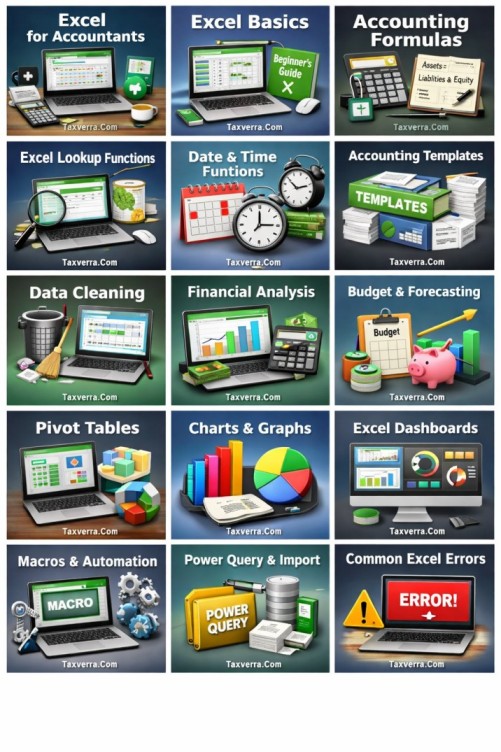
Excel is one of the most powerful and widely used tools in the accounting world. Whether you are a student, a junior bookkeeper, or an experienced accountant, Excel plays a central role in managing financial data, analyzing performance, and preparing reports. Its flexibility allows accountants to handle everything from simple calculations to complex financial models without relying entirely on specialized accounting software.
At its core, Excel helps accountants organize data in a structured way. Transactions, expenses, revenues, and balances can be recorded in rows and columns, making it easy to review and update information. Unlike manual records, Excel reduces errors through built in formulas and functions that perform calculations instantly. This not only saves time but also improves accuracy in financial reporting.
One of the biggest advantages of Excel is its ability to adapt to different accounting needs. For example, a small business owner can use Excel to track daily expenses and income. By creating a simple sheet with columns for date, description, and amount, they can quickly calculate total expenses for the month using a basic formula. On the other hand, a professional accountant can build detailed financial statements such as income statements, balance sheets, and cash flow reports using more advanced features.
Consider a practical example. Imagine you are managing expenses for a small business. You enter all transactions for the month into Excel. With a simple function, you can instantly calculate the total expenses. You can also categorize expenses into rent, utilities, and salaries, then analyze which category consumes the most budget. This kind of insight helps in better decision making and financial planning.
Excel is also valuable for analyzing trends and forecasting. Accountants can compare current data with previous periods to identify growth patterns or financial issues. Charts and visual tools make it easier to present this information clearly to clients or management.
In today’s digital environment, Excel remains an essential skill for accountants. It bridges the gap between raw data and meaningful financial insights, making it a must have tool for anyone involved in accounting or finance.
Excel Basics Every Accountant Must Know
Before moving into advanced features, every accountant needs a strong grip on the basics of Excel. These fundamentals form the foundation for accurate data handling, efficient workflows, and reliable financial reporting. Without understanding these core elements, even simple accounting tasks can become time consuming and error prone.
The first thing to understand is the structure of Excel. A workbook is a file that contains one or more worksheets, and each worksheet is made up of rows and columns. The intersection of a row and a column is called a cell, which is where data is entered. Accountants use cells to record transactions, balances, and other financial information in an organized manner. Keeping data well structured is important because it makes analysis and reporting much easier.
Data entry is another essential skill. Accountants should know how to input numbers, text, and dates correctly. Formatting plays a key role here. Financial data should always be presented in proper formats such as currency, percentage, or date. For example, if you are recording sales, formatting the numbers as currency ensures clarity and professionalism in reports.
Basic formulas are at the heart of Excel. Every accountant should be comfortable with simple functions like SUM, AVERAGE, MIN, and MAX. These functions help in quickly calculating totals, averages, and identifying highest or lowest values. For instance, if you have a list of monthly expenses, using the SUM function can instantly give you the total spending without manual calculation.
Cell referencing is another important concept. Excel allows you to refer to other cells when creating formulas. This makes calculations dynamic, meaning if one value changes, the result updates automatically. For example, if you calculate profit by subtracting expenses from revenue, any change in those figures will instantly reflect in the final result.
Another key basic is understanding sorting and filtering. These tools help accountants manage large datasets efficiently. You can sort transactions by date or amount, and filter specific data such as expenses above a certain value. This makes reviewing and analyzing financial information much faster.
Mastering these basic skills ensures that accountants can work confidently in Excel. It builds a strong base for learning advanced techniques and helps maintain accuracy and efficiency in everyday accounting tasks.
Core Accounting Formulas in Excel (With Examples)
Formulas are the backbone of Excel for accountants. They help automate calculations, reduce errors, and allow you to analyze financial data quickly. Understanding the core formulas is essential for anyone working with accounting or bookkeeping tasks. Let’s explore the most important ones with practical examples.
1. SUM Function
The SUM function adds a range of numbers instantly. This is useful for calculating total expenses, revenues, or balances.
Example:
Suppose you have monthly expenses in cells B2 to B6: 1200, 950, 1300, 1100, 1000.
The formula to calculate total expenses would be:
=SUM(B2:B6)
Result: 5550
This gives you the total expenses for the month without adding each number manually.
2. AVERAGE Function
AVERAGE calculates the mean of a range of numbers, which helps in analyzing trends.
Example:
If monthly sales are in cells C2 to C6: 5000, 5200, 4800, 5100, 5300
Formula:
=AVERAGE(C2:C6)
Result: 5080
This tells you the average sales per month.
3. IF Function
The IF function allows you to create conditional statements. This is useful for identifying transactions above a certain limit or categorizing data.
Example:
Suppose your budget limit is 1000 and expense amounts are in column B. To check if an expense exceeds the budget:
=IF(B2>1000,"Over Budget","Within Budget")
If B2 = 1200 → Result: Over Budget
If B3 = 950 → Result: Within Budget
4. MIN and MAX Functions
MIN finds the smallest value, and MAX finds the largest. Accountants use these to identify extremes in financial data.
Example:
Monthly expenses in B2:B6: 1200, 950, 1300, 1100, 1000
=MIN(B2:B6) → 950
=MAX(B2:B6) → 1300
This shows the lowest and highest expense of the month.
5. ROUND Function
ROUND ensures numbers are rounded to a specific number of decimal places, which is crucial for financial reports.
Example:
Suppose you calculate tax as 1250.678
=ROUND(1250.678,2)
Result: 1250.68
6. ABS Function
ABS returns the absolute value of a number, ignoring its sign. This is useful for analyzing variances.
Example:
If the variance between budget and actual is -200
=ABS(-200)
Result: 200
Practical Combined Example
Imagine you are preparing a monthly expense report:
| Expense | Amount |
|---|---|
| Rent | 1200 |
| Utilities | 950 |
| Salaries | 1300 |
| Supplies | 1100 |
| Miscellaneous | 1000 |
- Total expenses:
=SUM(B2:B6)→ 5550 - Average expense:
=AVERAGE(B2:B6)→ 1110 - Highest expense:
=MAX(B2:B6)→ 1300 - Check if Rent is over 1000:
=IF(B2>1000,"Over Budget","Within Budget")→ Over Budget
These formulas provide instant insights without manual calculations, saving time and reducing errors.
Lookup Functions for Accountants
Lookup functions in Excel are among the most powerful tools for accountants. They allow you to find and retrieve data from large datasets quickly, which is especially useful when dealing with multiple accounts, clients, or transactions. Mastering these functions saves hours of manual searching and ensures accuracy in reporting.
1. VLOOKUP Function
VLOOKUP (Vertical Lookup) searches for a value in the first column of a range and returns a value in the same row from another column.
Example:
Suppose you have the following client billing data:
| Client ID | Client Name | Amount Due |
|---|---|---|
| 101 | John Smith | 1200 |
| 102 | Sarah Lee | 950 |
| 103 | Mark Davis | 1300 |
You want to find the Amount Due for Client ID 102.
Formula:
=VLOOKUP(102, A2:C4, 3, FALSE)
Result: 950
Here, 102 is the value to look for, A2:C4 is the range, 3 tells Excel to return the value from the third column, and FALSE ensures an exact match.
2. HLOOKUP Function
HLOOKUP (Horizontal Lookup) works similarly to VLOOKUP but searches in a row instead of a column. This is useful when your data is organized horizontally.
Example:
| Month | Jan | Feb | Mar |
|---|---|---|---|
| Revenue | 5000 | 5200 | 4800 |
To find February revenue:
=HLOOKUP("Feb", A1:D2, 2, FALSE)
Result: 5200
3. INDEX and MATCH Functions
INDEX and MATCH together are more flexible than VLOOKUP. INDEX returns a value from a specific row and column, while MATCH finds the position of a value in a range.
Example:
Using the same client data:
- Client IDs in A2:A4
- Amounts Due in C2:C4
To find the Amount Due for Client ID 103:
=INDEX(C2:C4, MATCH(103, A2:A4, 0))
Result: 1300
MATCH finds the position of 103 in the list (which is 3), and INDEX returns the value in the third row of column C.
This combination is more robust than VLOOKUP because it works even if the column order changes, and it can search both horizontally and vertically.
4. Practical Example for Accountants
Imagine you are preparing a report for multiple clients and want to automatically fetch the latest invoice amount:
| Client ID | Invoice Date | Amount |
|---|---|---|
| 101 | 01-Mar-26 | 1200 |
| 102 | 05-Mar-26 | 950 |
| 103 | 07-Mar-26 | 1300 |
Instead of scrolling through hundreds of rows to find a client, you can use VLOOKUP or INDEX + MATCH. For example:
=VLOOKUP(103, A2:C4, 3, FALSE)
or
=INDEX(C2:C4, MATCH(103, A2:A4, 0))
Both will instantly give 1300 as the amount due for Client ID 103.
Why Accountants Must Learn Lookup Functions
- Saves time when handling large datasets
- Ensures accurate retrieval of financial data
- Works for invoices, accounts receivable, payroll, budgets, and reports
- Flexible for dynamic datasets
Date & Time Functions in Accounting
Date and time functions in Excel are essential for accountants because financial data is often tied to specific dates. Whether it’s tracking invoices, calculating due dates, or generating monthly reports, knowing how to use these functions saves time and ensures accuracy. Excel provides a wide range of tools to handle dates and perform calculations based on them.
1. TODAY Function
The TODAY function returns the current date. It updates automatically every time the worksheet is opened.
Example:
If you want to show today’s date in cell A1:
=TODAY()
Result: 22-Mar-2026 (automatically updates each day)
Accountants often use this function to calculate how many days have passed since an invoice was issued.
2. NOW Function
The NOW function returns the current date and time. It’s useful when you need timestamps for transactions or logs.
Example:
=NOW()
Result: 22-Mar-2026 12:30 PM
This can help track when entries are made or when reports are generated.
3. EDATE Function
EDATE is used to add or subtract months from a specific date. It is useful for calculating payment due dates or expiry dates.
Example:
If an invoice date is in cell B2 as 01-Mar-2026, and the payment term is 3 months:
=EDATE(B2, 3)
Result: 01-Jun-2026
This shows the due date for the invoice.
4. EOMONTH Function
EOMONTH returns the last day of the month for a given date. It is commonly used for month-end reporting.
Example:
=EOMONTH("15-Mar-2026", 0)
Result: 31-Mar-2026
If you want the last day of next month, use 1 instead of 0. This is useful for generating month-end financial statements.
5. DATEDIF Function
DATEDIF calculates the difference between two dates in days, months, or years.
Example:
Invoice issued on 01-Mar-2026, payment received on 15-Mar-2026:
=DATEDIF("01-Mar-2026", "15-Mar-2026", "d")
Result: 14
This tells you the number of days it took to receive payment.
6. NETWORKDAYS Function
NETWORKDAYS calculates the number of working days between two dates, excluding weekends and optionally holidays.
Example:
Invoice issued on 01-Mar-2026, payment received on 15-Mar-2026:
=NETWORKDAYS("01-Mar-2026", "15-Mar-2026")
Result: 11
This is useful for aging reports or tracking payment delays in business days.
Practical Accounting Example
Suppose you are managing client invoices and want to calculate due dates, aging, and late payments:
| Invoice | Issue Date | Terms (Months) | Due Date | Days Overdue |
|---|---|---|---|---|
| INV101 | 01-Mar-26 | 1 | 01-Apr-26 | 21 |
| INV102 | 05-Mar-26 | 2 | 05-May-26 | 10 |
Formulas:
- Due Date:
=EDATE(B2,C2)→ calculates invoice due date - Days Overdue:
=TODAY()-D2→ calculates how many days the invoice is overdue
Using these functions, accountants can automate payment tracking, generate reports, and ensure nothing is missed.
Creating Accounting Templates in Excel
Creating accounting templates in Excel is one of the most practical skills an accountant can master. Templates save time, ensure consistency, and make reporting easier. Instead of starting from scratch each month, you can build reusable sheets for income tracking, expense monitoring, cash flow, and financial statements. These templates also help prevent errors and maintain a professional standard.
1. Income Statement Template
An income statement shows the profitability of a business over a specific period. In Excel, you can create a simple table with columns for revenue, expenses, and net profit.
Example:
| Description | Amount |
|---|---|
| Sales Revenue | 50,000 |
| Service Revenue | 10,000 |
| Total Revenue | 60,000 |
| Salaries | 20,000 |
| Rent | 5,000 |
| Utilities | 2,000 |
| Total Expenses | 27,000 |
| Net Profit | 33,000 |
Formulas:
- Total Revenue:
=SUM(B2:B3) - Total Expenses:
=SUM(B5:B7) - Net Profit:
=B4-B8
This template can be reused every month by updating the numbers, and formulas automatically calculate totals and profit.
2. Expense Tracker Template
An expense tracker helps monitor business spending and ensures that nothing is overlooked. You can categorize expenses for easier analysis.
Example:
| Date | Category | Description | Amount |
|---|---|---|---|
| 01-Mar-26 | Rent | Office Rent | 5,000 |
| 03-Mar-26 | Utilities | Electricity Bill | 500 |
| 05-Mar-26 | Supplies | Stationery | 300 |
Formula for total expenses:
=SUM(D2:D4)
You can also use SUMIF to calculate total per category. For example, total rent:
=SUMIF(B2:B4,"Rent",D2:D4)
3. Accounts Receivable & Payable Template
Tracking money owed and money due is essential for cash flow management. Excel can help organize invoices, payments, and due dates.
Example – Accounts Receivable:
| Invoice | Client | Issue Date | Due Date | Amount | Paid? |
|---|---|---|---|---|---|
| INV101 | John Smith | 01-Mar-26 | 15-Mar-26 | 1,200 | Yes |
| INV102 | Sarah Lee | 05-Mar-26 | 20-Mar-26 | 950 | No |
Formula to calculate total outstanding:
=SUMIF(F2:F3,"No",E2:E3)
Result: 950
Example – Accounts Payable:
| Bill ID | Vendor | Issue Date | Due Date | Amount | Paid? |
|---|---|---|---|---|---|
| B101 | Supplier A | 01-Mar-26 | 10-Mar-26 | 500 | Yes |
| B102 | Supplier B | 03-Mar-26 | 15-Mar-26 | 1,000 | No |
Formula to calculate total unpaid bills:
=SUMIF(F2:F3,"No",E2:E3)
Result: 1,000
4. Cash Flow Template
A cash flow template helps track money coming in and going out, which is vital for ensuring the business can meet its obligations.
Example:
| Date | Description | Inflow | Outflow | Balance |
|---|---|---|---|---|
| 01-Mar-26 | Sales | 5,000 | 0 | 5,000 |
| 02-Mar-26 | Rent Paid | 0 | 1,000 | 4,000 |
| 03-Mar-26 | Utilities | 0 | 200 | 3,800 |
Formula for balance:
=B2+C3-D3
Copy the formula down the column to update the balance automatically.
5. Tips for Creating Effective Templates
- Use clear headers and consistent formatting
- Include formulas to automate calculations
- Use drop-downs and data validation to prevent errors
- Color-code important fields for better readability
- Keep templates flexible so they can be reused monthly or quarterly
Pivot Tables for Accountants
Pivot tables are one of the most powerful tools in Excel, especially for accountants. They allow you to summarize, analyze, and explore large datasets quickly without writing complex formulas. With pivot tables, you can create financial reports, track expenses, monitor revenues, and generate insights in minutes.
1. What is a Pivot Table?
A pivot table is an interactive table that summarizes data from a larger dataset. It can calculate totals, averages, counts, and percentages, and it allows you to organize data dynamically by dragging and dropping fields.
Example:
Suppose you have an expense dataset:
| Date | Category | Amount | Paid By |
|---|---|---|---|
| 01-Mar-26 | Rent | 5000 | Bank |
| 02-Mar-26 | Utilities | 300 | Cash |
| 03-Mar-26 | Supplies | 150 | Bank |
| 05-Mar-26 | Rent | 5000 | Bank |
| 06-Mar-26 | Utilities | 350 | Cash |
2. Creating a Pivot Table
Steps:
- Select your dataset.
- Go to Insert → PivotTable.
- Choose to place it in a new worksheet or existing worksheet.
- Drag and drop fields into:
- Rows: Categories
- Values: Amount (summed by default)
- Columns (optional): Paid By
Result:
| Category | Bank | Cash | Grand Total |
|---|---|---|---|
| Rent | 10,000 | 0 | 10,000 |
| Utilities | 0 | 650 | 650 |
| Supplies | 150 | 0 | 150 |
| Grand Total | 10,150 | 650 | 10,800 |
This instantly shows total expenses by category and payment method.
3. Analyzing Revenues
Pivot tables are not limited to expenses. You can track client payments, sales, and invoices easily.
Example:
| Client | Invoice | Amount | Status |
|---|---|---|---|
| John Smith | INV101 | 1200 | Paid |
| Sarah Lee | INV102 | 950 | Unpaid |
| Mark Davis | INV103 | 1300 | Paid |
| John Smith | INV104 | 1500 | Unpaid |
Pivot Table:
- Rows: Client
- Columns: Status
- Values: Amount (Sum)
Result:
| Client | Paid | Unpaid | Grand Total |
|---|---|---|---|
| John Smith | 1200 | 1500 | 2700 |
| Sarah Lee | 0 | 950 | 950 |
| Mark Davis | 1300 | 0 | 1300 |
| Grand Total | 2500 | 2450 | 4950 |
This shows which clients have pending payments at a glance.
4. Grouping Data by Dates
Pivot tables allow you to group data by months, quarters, or years for financial reporting.
Example:
If you have invoice dates in your dataset, you can group by Month:
- Right-click the Date field in the Pivot Table → Group → Months
Now you can see total sales or expenses per month automatically.
5. Filtering and Slicing
Pivot tables have Filters and Slicers that allow dynamic analysis. For example:
- Filter by specific client, category, or payment method.
- Use a slicer to quickly switch between months or departments.
This makes reports interactive and easy to explore.
6. Practical Accounting Use Cases
- Expense Summary: Show total expenses by category, department, or payment type.
- Client Invoicing Report: Track unpaid invoices by client.
- Revenue Analysis: Compare sales month over month or year over year.
- Payroll Summary: Calculate total salaries by department or employee.
- Cash Flow Overview: Summarize inflows and outflows by week or month.
Pivot tables transform large, messy datasets into meaningful reports instantly. They are essential for accountants who want to analyze data, identify trends, and present insights professionally.
Charts & Data Visualization in Excel for Accountants
Visualizing financial data makes it easier to understand trends, spot anomalies, and communicate insights to stakeholders. Charts and graphs in Excel turn raw numbers into clear visual representations, helping accountants make data-driven decisions.
1. Why Charts Are Important
Numbers alone can be overwhelming, especially in large datasets. Charts help:
- Identify trends in revenue, expenses, or cash flow
- Compare categories or time periods quickly
- Present data to management in an easy-to-understand format
For example, a simple line chart showing monthly sales makes trends immediately visible.
2. Commonly Used Charts for Accounting
a. Column & Bar Charts
- Ideal for comparing revenue, expenses, or profits across categories or months.
Example: Monthly Expenses
| Month | Rent | Utilities | Supplies |
|---|---|---|---|
| Jan | 5000 | 300 | 150 |
| Feb | 5000 | 320 | 180 |
| Mar | 5000 | 350 | 150 |
A clustered column chart can show all three categories per month for quick comparison.
b. Line Charts
- Useful for trend analysis over time, such as sales growth or cash flow trends.
Example: Monthly Sales
| Month | Sales |
|---|---|
| Jan | 50,000 |
| Feb | 52,000 |
| Mar | 48,000 |
| Apr | 51,000 |
Plotting this data in a line chart shows the ups and downs in sales visually.
c. Pie Charts
- Shows proportionate contribution of categories, such as expenses by type or revenue by client.
Example: Total Expenses
| Category | Amount |
|---|---|
| Rent | 10,000 |
| Utilities | 650 |
| Supplies | 150 |
A pie chart highlights which expense consumes the largest portion of the budget.
d. Combo Charts
- Combine two chart types, e.g., a column chart for revenue and a line chart for net profit, to visualize multiple metrics on the same graph.
Example:
| Month | Revenue | Net Profit |
|---|---|---|
| Jan | 50,000 | 23,000 |
| Feb | 52,000 | 24,500 |
| Mar | 48,000 | 22,500 |
Combo charts make it easier to analyze relationships between metrics.
3. Using Conditional Formatting for Visualization
Conditional formatting allows you to highlight important data directly in tables:
- Highlight negative numbers in red
- Use color scales to show high and low values
- Add data bars to visualize size differences within a column
Example: Highlight overdue invoices in red to quickly see which clients need follow-up.
4. Dashboards for Accounting Insights
By combining pivot tables, charts, and conditional formatting, you can create dynamic dashboards. Dashboards provide a single view of key metrics like:
- Revenue and expenses by month
- Outstanding invoices
- Profit margins and trends
Dynamic dashboards allow management to make quick, informed decisions without sifting through raw data.
5. Practical Example: Monthly Expense Dashboard
Data:
| Category | Jan | Feb | Mar |
|---|---|---|---|
| Rent | 5000 | 5000 | 5000 |
| Utilities | 300 | 320 | 350 |
| Supplies | 150 | 180 | 150 |
Visualization:
- Clustered column chart to compare expenses by category across months
- Conditional formatting on the table to highlight increasing expenses
- Pie chart to show proportion of total expenses by category
This provides an instant view of which expense is increasing, stable, or minimal.
Charts and data visualization make accounting data actionable. By combining tables, pivot tables, charts, and conditional formatting, accountants can communicate financial insights clearly and professionally.
Excel Dashboards for Accountants
Excel dashboards are interactive, visual reports that consolidate key financial metrics in one place. For accountants, dashboards make it easier to monitor performance, track expenses, analyze cash flow, and communicate insights to management or clients. They combine charts, pivot tables, and key figures into a single, easy-to-read interface.
1. Why Dashboards Are Important
Dashboards help accountants:
- Monitor financial health at a glance
- Identify trends and anomalies quickly
- Make data-driven decisions
- Reduce the time spent preparing multiple reports
Instead of manually analyzing spreadsheets, dashboards provide a live summary of your financial data.
2. Key Components of an Accounting Dashboard
- Key Metrics (KPIs)
- Total Revenue
- Total Expenses
- Net Profit
- Accounts Receivable & Payable
- Cash Balance
- Charts & Visuals
- Column charts for monthly revenue and expenses
- Line charts for trends over time
- Pie charts for category-wise expenses
- Combo charts to compare revenue vs. profit
- Pivot Tables
- Summarize invoices by client or month
- Summarize expenses by category or department
- Slicers & Filters
- Interactive controls to filter data by month, client, or category
- Makes dashboards dynamic and user-friendly
3. Steps to Create a Dashboard
Step 1: Prepare Clean Data
Ensure all your accounting data is structured, with columns for Date, Category, Client, Amount, and Status. Clean data makes formulas, charts, and pivot tables work correctly.
Step 2: Create Pivot Tables
- Summarize expenses by category or month
- Summarize revenue by client or project
Step 3: Insert Charts
- Column charts for expenses vs. budget
- Line charts for monthly revenue trends
- Pie charts for proportionate expense categories
Step 4: Add Slicers
- Go to Insert → Slicer on your pivot tables
- Filter by Month, Category, or Client
- Interactive filtering allows quick analysis
Step 5: Design the Dashboard
- Arrange KPIs at the top
- Place charts and tables below
- Use colors, data bars, and conditional formatting for emphasis
4. Practical Example: Monthly Financial Dashboard
Data:
| Category | Jan | Feb | Mar |
|---|---|---|---|
| Rent | 5000 | 5000 | 5000 |
| Utilities | 300 | 320 | 350 |
| Supplies | 150 | 180 | 150 |
| Revenue | 50,000 | 52,000 | 48,000 |
Dashboard Elements:
- KPIs: Total Revenue (150,000), Total Expenses (11,500), Net Profit (138,500)
- Charts:
- Column chart for monthly expenses by category
- Line chart for monthly revenue trends
- Pie chart showing proportion of expenses by category
- Slicers: Filter by month or category to focus on specific data
This dashboard allows an accountant to quickly see the company’s financial performance and make informed recommendations.
5. Tips for Effective Dashboards
- Keep it simple and clean; avoid clutter
- Highlight the most important metrics using colors or bold fonts
- Make it interactive with slicers and drop-down filters
- Use dynamic formulas to update data automatically
- Group related charts and KPIs together for easy comparison
Dashboards transform raw accounting data into actionable insights. For accountants, they are a professional tool that saves time, improves reporting, and enhances decision-making.
Automation in Excel for Accountants
Automation in Excel saves time, reduces repetitive work, and minimizes errors. For accountants handling large datasets, invoices, or financial reports, automating tasks ensures consistency and allows more focus on analysis rather than manual data entry. Excel offers several ways to automate accounting workflows, including formulas, macros, and dynamic tools.
1. Using Formulas for Automation
Excel formulas can automatically calculate values, track trends, and flag errors without manual intervention.
Examples:
a. Auto-calculating Totals
=SUM(B2:B10)
Automatically sums all amounts in a range, updating whenever new data is added.
b. Conditional Calculations
=IF(E2="Paid",0,D2)
Automatically calculates outstanding invoices based on the “Paid” status.
c. Dynamic Lookup
=VLOOKUP(A2,Invoices!A:D,4,FALSE)
Automatically pulls invoice details from a separate sheet based on invoice number.
2. Macros for Repetitive Tasks
Macros are recorded sequences of actions that can be run repeatedly with a single click. Accountants can use macros to:
- Format financial statements automatically
- Generate monthly reports
- Import and clean data from multiple sources
Example: Automate monthly expense formatting:
- Go to Developer → Record Macro
- Perform tasks like bolding headers, adjusting column widths, applying number formatting
- Stop recording
- Run the macro next month to apply the same formatting instantly
Macros save hours of repetitive work and ensure consistency.
3. Automated Reports Using Pivot Tables
Pivot tables combined with automation can produce recurring reports effortlessly. For example:
- Monthly revenue summaries
- Expense breakdowns by category
- Client invoice reports
By refreshing the pivot table after updating data, the entire report updates automatically without recreating charts or formulas.
4. Dynamic Dashboards
Automation allows dashboards to update in real-time as new data is entered. Key tools include:
- Named Ranges: Automatically expand as data grows
- Tables: Structured tables update formulas and charts automatically when new rows are added
- Slicers & Timelines: Allow interactive filtering of updated data
Example: A cash flow dashboard that automatically recalculates balances when new inflows or outflows are recorded.
5. Conditional Formatting Automation
Conditional formatting highlights critical information automatically:
- Flag overdue invoices in red
- Highlight negative balances
- Color-code expenses over budget
Example:
Select Amount > Conditional Formatting → Highlight Cells Rules → Greater Than → 5000 → Red Fill
Now, any expense over 5,000 is automatically highlighted.
6. Practical Accounting Example
Scenario: Monthly invoice tracking
| Invoice | Client | Amount | Status | Outstanding |
|---|---|---|---|---|
| INV101 | John Smith | 1200 | Paid | 0 |
| INV102 | Sarah Lee | 950 | Unpaid | 950 |
| INV103 | Mark Davis | 1300 | Paid | 0 |
- Outstanding Calculation:
=IF(D2="Paid",0,C2)
- Conditional formatting highlights all unpaid invoices automatically
- Pivot table summarizes total unpaid per client
- Macro formats the sheet for monthly reporting automatically
Automation in Excel transforms accounting from manual, error-prone tasks into efficient, reliable processes. By combining formulas, macros, pivot tables, and dashboards, accountants can focus more on insights and decision-making rather than repetitive work.
Common Excel Mistakes in Accounting
Even experienced accountants can make errors in Excel that lead to inaccurate reports, wasted time, or financial misinterpretations. Identifying and avoiding these common mistakes ensures data integrity and professional, reliable outputs.
1. Incorrect Formula References
One of the most frequent mistakes is using wrong cell references. This can happen with:
- Relative vs Absolute References: Forgetting to lock a reference when copying formulas
- Example:
=SUM(B2:B10)
- If copied to another column without adjusting for absolute references, it may sum the wrong range.
Fix: Use$to lock cells:
=SUM($B$2:$B$10)
2. Manual Calculations Instead of Formulas
Entering totals manually instead of using SUM or AVERAGE is risky. Manual totals don’t update automatically when new data is added, leading to errors in reports.
Example: Adding a column of expenses manually and forgetting to include a new row can misstate total expenses.
Fix: Always use formulas like =SUM(B2:B20) for dynamic calculations.
3. Ignoring Data Validation
Without data validation, inconsistent entries occur:
- “Rent” vs “rent” vs “Rental”
- Dates entered in different formats
- Negative amounts entered where only positive numbers are allowed
Impact: Errors propagate into pivot tables, charts, and reports.
Fix: Use Data → Data Validation to restrict entries, create drop-down lists, and enforce formats.
4. Overusing Complex Formulas
Stacking multiple functions in one formula can make debugging difficult. For example:
=IF(ISERROR(VLOOKUP(A2,Sheet2!A:D,4,FALSE)),"Not Found",VLOOKUP(A2,Sheet2!A:D,4,FALSE))
- This works but is hard to maintain
- Can slow down large workbooks
Fix: Break complex formulas into helper columns or use IFERROR with simpler references.
5. Not Using Tables or Named Ranges
Using raw cell ranges instead of Excel tables can lead to broken formulas when new rows are added.
Example:
=SUM(B2:B20)will not include row 21 if added- Using tables:
=SUM(Table1[Amount])automatically adjusts for new rows
6. Failing to Protect Data
Accidental deletion or overwriting of formulas is common when worksheets are unprotected.
Example: Overwriting a formula in the net profit column can cause incorrect reports.
Fix: Lock formula cells and protect sheets using Review → Protect Sheet.
7. Ignoring Backup & Version Control
Working on one file without backup can lead to permanent data loss or errors that are hard to trace.
Fix:
- Save periodic versions (e.g.,
Expenses_March_v1.xlsx) - Use cloud storage like OneDrive or Google Drive for version history
8. Overlooking Conditional Formatting
Failing to use conditional formatting can make it hard to spot critical information, such as overdue invoices or negative balances.
Fix: Highlight negative values, unpaid invoices, or unusually high expenses with conditional formatting for better visibility.
9. Incorrect Use of Pivot Tables
Common pivot table mistakes include:
- Forgetting to refresh after updating source data
- Using inconsistent categories that split the same data across rows
- Summarizing numbers incorrectly (e.g., using count instead of sum)
Fix: Refresh pivot tables regularly and ensure data is clean and consistent.
10. Neglecting Documentation
Not documenting formulas, assumptions, or data sources makes spreadsheets hard to audit or understand by others.
Fix:
- Add a “Notes” sheet explaining formulas, sources, and methodology
- Label pivot tables, charts, and dashboards clearly
Key Takeaway
Avoiding these common mistakes ensures:
- Accurate and reliable financial reports
- Time savings with fewer errors to fix
- Professional presentation for clients or management
Mastering Excel in accounting isn’t just about formulas or dashboards it’s also about discipline, structure, and good practices.
Real-Life Accounting Case Study
Final Thought
Excel and accounting software are complementary tools, not competitors.
- Accounting software is ideal for daily bookkeeping, compliance, and automation.
- Excel is ideal for deep analysis, custom reporting, and financial modeling.
For a professional accountant, mastering both maximizes productivity and financial insight.
FAQs About Excel for Accountants
Here’s a comprehensive list of frequently asked questions that accountants often have when using Excel, along with clear, practical answers. These address common challenges, best practices, and ways to maximize efficiency.
1. Why should accountants use Excel if we have accounting software?
Excel complements accounting software. While software automates bookkeeping, Excel allows:
- Custom financial models
- Advanced analysis and dashboards
- Consolidation of multiple data sources
- Scenario planning and forecasting
Many accountants export data from software into Excel for reporting and decision-making.
2. What are the most essential Excel skills for accountants?
Key skills include:
- Core formulas: SUM, AVERAGE, IF, SUMIF, COUNTIF, VLOOKUP, INDEX-MATCH
- Pivot Tables and Pivot Charts
- Conditional Formatting
- Data Validation
- Power Query for importing and cleaning data
- Basic Macros and VBA for automation
Mastering these will cover 80% of accounting tasks in Excel.
3. How can I avoid errors in Excel accounting spreadsheets?
- Use Data Validation to restrict inputs
- Lock cells containing formulas
- Use IFERROR or ISERROR for error handling
- Audit formulas using Trace Precedents / Dependents
- Keep raw data separate from analysis and reports
4. What is the difference between Pivot Tables and regular tables?
- Regular tables organize data, allow structured references, and update formulas automatically
- Pivot Tables summarize, analyze, and filter large datasets dynamically
Pivot Tables are ideal for quick reporting and dashboards, while tables are best for structured data storage and formula use.
5. How can I automate repetitive accounting tasks?
- Use Macros to record and repeat actions
- Use Power Query to import and clean data automatically
- Build dynamic templates with pre-set formulas, conditional formatting, and pivot tables
- Leverage named ranges and structured tables to reduce formula updates
6. What are some common mistakes accountants make in Excel?
- Manual calculations instead of formulas
- Using inconsistent data formats (e.g., “Rent” vs “rent”)
- Not locking formula cells or protecting worksheets
- Forgetting to refresh Pivot Tables
- Ignoring backup and version control
Avoiding these ensures accuracy and reliability.
7. How can Excel handle large datasets for accounting?
- Use Excel Tables for structured ranges
- Use Power Query to combine multiple files or sources
- Use Power Pivot for millions of rows and relationships between multiple tables
- Avoid volatile formulas like OFFSET or INDIRECT in huge datasets
8. Can Excel replace accounting software?
Not entirely. Excel is excellent for analysis, custom reporting, dashboards, and modeling. Accounting software is better for daily bookkeeping, compliance, tax reporting, and multi-user environments. The ideal approach is to use both together.
9. How do I create professional financial dashboards in Excel?
- Consolidate data in structured tables
- Use Pivot Tables to summarize revenue, expenses, or outstanding balances
- Add charts (line, bar, pie) to visualize trends
- Include slicers and timelines for interactive filtering
- Apply consistent formatting for clarity and professionalism
10. How can I learn Excel faster as an accountant?
- Practice daily with real accounting data
- Start with core formulas and pivot tables
- Use shortcuts to improve speed
- Explore advanced tools gradually (Power Query, Power Pivot, VBA)
- Reverse-engineer templates to learn best practices
11. Are there ready-made Excel templates for accountants?
Yes. Useful templates include:
- General Ledger
- Income Statement / Profit & Loss
- Expense Tracker
- Cash Flow Statement
- Accounts Receivable / Payable
- Budget vs Actual
- Financial Dashboards
- Tax Calculation Sheets
- Fixed Asset Registers
Templates save time and demonstrate professional best practices.
12. How can I ensure Excel spreadsheets are secure?
- Protect worksheets and workbooks with passwords
- Lock formula cells while leaving input cells editable
- Keep backups and use version control
- Restrict editing rights when sharing files with others
Final Advice
Excel is a powerful tool for accountants, but its effectiveness depends on accuracy, structure, and automation. Learning advanced features, practicing with real data, and combining Excel with accounting software maximizes productivity and financial insights.
Final Thoughts & Action Plan for Accountants Using Excel
Excel is more than just a spreadsheet tool it’s a powerhouse for analysis, reporting, and decision-making when used correctly. For accountants, mastering Excel means saving time, reducing errors, and gaining deeper insights into financial data. The key is combining structure, automation, and practical application.
Final Thoughts
- Excel Complements Accounting Software
Use software for bookkeeping and compliance, and Excel for reporting, dashboards, forecasts, and custom analysis. Together, they form a powerful financial toolkit. - Accuracy is Paramount
Protect formulas, validate data, and audit your sheets regularly. Even a small mistake can distort financial reports. - Efficiency Matters
Keyboard shortcuts, templates, and macros drastically reduce repetitive work, letting you focus on analysis instead of manual entry. - Advanced Features Unlock Insights
Pivot Tables, Power Query, Power Pivot, and VBA allow you to handle large datasets, automate processes, and create dynamic dashboards. - Continuous Learning is Essential
Excel evolves constantly. Stay updated with new functions, tools, and best practices. Practice daily using real accounting scenarios.
Action Plan for Mastering Excel as an Accountant
Step 1: Build a Strong Foundation
- Master core formulas: SUM, AVERAGE, IF, SUMIF, COUNTIF
- Understand cell references: relative, absolute, and mixed
Step 2: Organize and Protect Data
- Structure raw data in Tables
- Use Data Validation for consistent input
- Lock formulas and protect sheets
Step 3: Analyze and Visualize
- Learn Pivot Tables and Pivot Charts
- Use conditional formatting to highlight critical data
- Create interactive dashboards with slicers and charts
Step 4: Automate Tasks
- Record simple Macros for repetitive formatting or calculations
- Learn VBA for advanced automation
- Use Power Query to import and clean data efficiently
Step 5: Apply Advanced Techniques
- Use INDEX-MATCH and XLOOKUP for flexible lookups
- Implement dynamic arrays like FILTER, SORT, and UNIQUE
- Build financial models and scenario analyses for forecasts
Step 6: Leverage Templates & Real-Life Examples
- Use ready-made accounting templates for invoices, ledgers, budgets, and dashboards
- Reverse-engineer them to learn formulas, formatting, and best practices
Step 7: Practice and Continuous Improvement
- Dedicate 30–60 minutes daily to Excel exercises
- Solve real accounting problems using formulas, pivot tables, and dashboards
- Audit your work and refine for accuracy and efficiency
Step 8: Integrate with Accounting Software
- Export data from your accounting software to Excel
- Perform custom analysis, reporting, and forecasts
- Automate repetitive exports and updates where possible
Key Takeaway
Mastering Excel is not just about formulas it’s about creating accurate, efficient, and insightful financial workflows. Accountants who combine structured data, automation, visualization, and real-life application become more strategic, save time, and deliver professional results consistently.

