

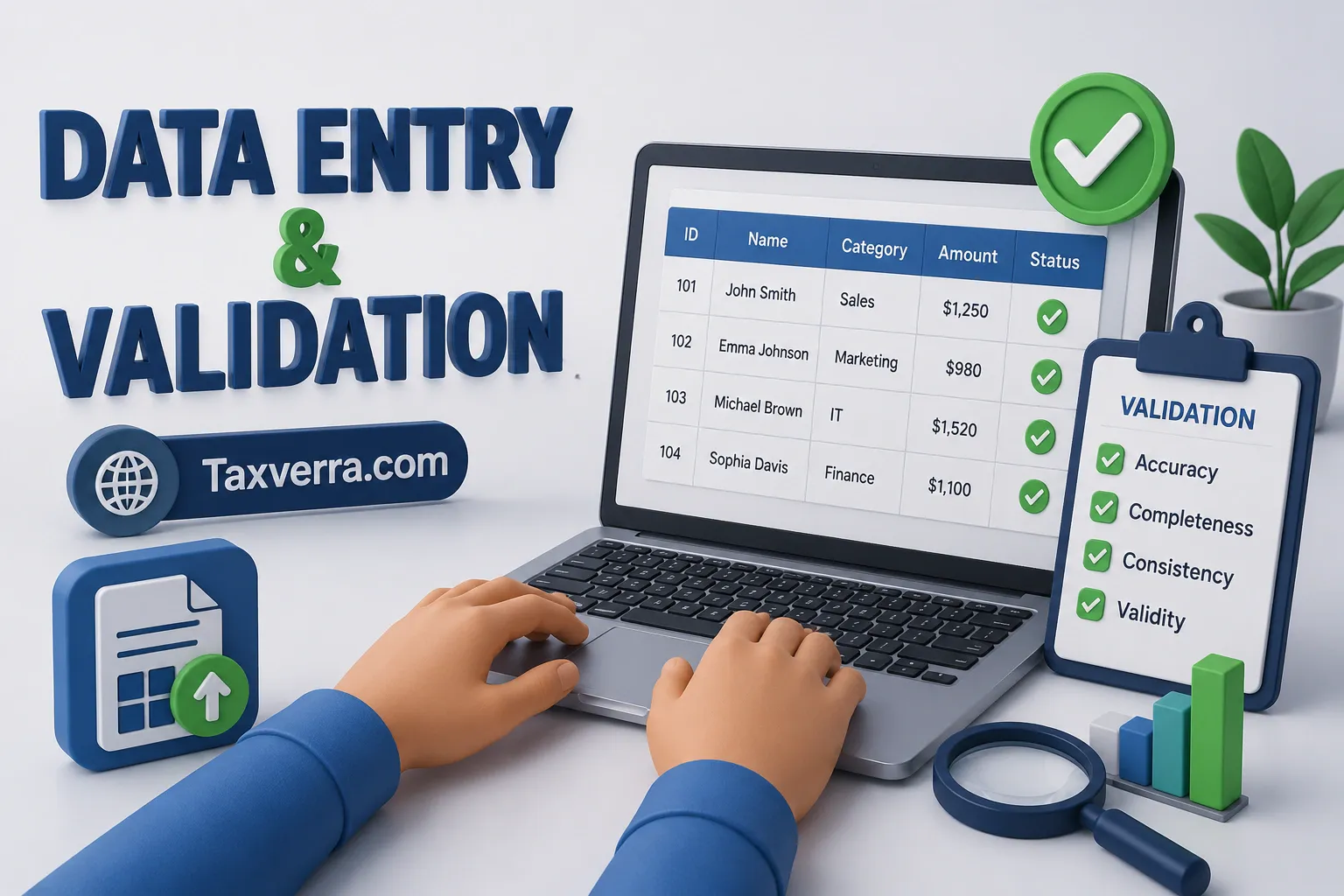
Accurate data entry is one of the most important tasks for accountants. Even a small mistake in recording numbers can create big problems in financial reports, budgets, and tax filings. Excel offers several tools and techniques that make data entry faster, more accurate, and less prone to errors.
1. Structured Data Entry
The first step in accurate data entry is organizing your spreadsheet properly. Every column should represent a specific type of information, such as Date, Description, Category, or Amount. Each row should correspond to a single transaction or record.
Example:
| Date | Category | Description | Amount |
|---|---|---|---|
| 01-Mar-26 | Rent | Office Rent | 5000 |
| 02-Mar-26 | Utilities | Electricity Bill | 300 |
| 03-Mar-26 | Supplies | Stationery | 150 |
By keeping data structured, you can easily apply formulas, sorting, and filtering without errors.
2. Using Drop-Down Lists for Categories
Drop-down lists reduce typing errors and ensure consistency in categories. This is done using Data Validation in Excel.
Example:
Suppose your expense categories are Rent, Utilities, and Supplies. You can create a drop-down in the Category column so only these options can be selected.
Steps:
- Select the cells for Category.
- Go to Data → Data Validation → List.
- Enter the options separated by commas:
Rent, Utilities, Supplies.
Now, when entering data, you can select the category from a list instead of typing it manually. This ensures uniformity and avoids typos.
3. Restricting Data Types
Excel allows you to control what type of data can be entered in a cell. For example, you can restrict a column to accept only numbers, dates, or text.
Example:
- Amount column should only accept positive numbers.
- Invoice Date column should only allow valid dates.
Steps:
- Select the column (e.g., Amount).
- Go to Data → Data Validation → Whole Number.
- Set minimum value to 0.
This prevents entering invalid amounts like negative numbers or text.
4. Using Input Messages & Error Alerts
Excel can show messages to guide the user when entering data. Input messages appear when a cell is selected, while error alerts pop up if invalid data is entered.
Example:
- For the Amount column, display a message: “Enter only positive numbers.”
- If someone tries to enter -500, Excel will show an error and prevent it.
5. Avoiding Duplicate Entries
Duplicate entries can cause miscalculations in financial reports. You can prevent duplicates using conditional formatting or formulas.
Example:
- Highlight duplicate invoice numbers:
Conditional Formatting → Highlight Cells Rules → Duplicate Values
This ensures each invoice or transaction is recorded only once.
6. Practical Example: Expense Tracker with Validation
| Date | Category | Description | Amount |
|---|---|---|---|
| 01-Mar-26 | Rent | Office Rent | 5000 |
| 02-Mar-26 | Utilities | Electricity Bill | 300 |
| 03-Mar-26 | Supplies | Stationery | 150 |
Techniques applied:
- Category column uses a drop-down list.
- Amount column restricted to numbers ≥ 0.
- Duplicate invoice IDs highlighted automatically.
With these techniques, accountants can enter data efficiently, reduce errors, and maintain clean financial records.
Data Cleaning & Preparation
Data cleaning and preparation are critical steps in accounting. Even if all your transactions are recorded correctly, inconsistencies, duplicates, or formatting issues can lead to inaccurate reports or wrong financial decisions. Excel provides powerful tools that allow accountants to clean and organize data efficiently, ensuring it is ready for analysis or reporting.
1. Removing Duplicates
Duplicate entries are common, especially when importing data from multiple sources. Excel can quickly identify and remove duplicates to maintain accurate records.
Example:
Suppose you have a list of invoices:
| Invoice ID | Client | Amount |
|---|---|---|
| INV101 | John Smith | 1200 |
| INV102 | Sarah Lee | 950 |
| INV101 | John Smith | 1200 |
To remove duplicates:
- Select the data range.
- Go to Data → Remove Duplicates.
- Choose the column(s) to check (e.g., Invoice ID).
Result: The duplicate INV101 is removed, leaving only unique entries.
2. Fixing Inconsistent Data
Sometimes data is entered inconsistently, such as “Rent” and “rent” in the Category column. Excel functions like UPPER, LOWER, and PROPER can standardize text entries.
Example:
=PROPER(A2)
If A2 contains “office rent”, the result is “Office Rent”, ensuring consistency across your records.
3. Text to Columns
When importing data from systems like accounting software or bank statements, multiple pieces of information may be combined in a single column. The Text to Columns feature splits data for better analysis.
Example:
| Data |
|---|
| 01-Mar-26, Rent |
Steps:
- Select the column.
- Go to Data → Text to Columns → Delimited → Comma.
Result:
| Date | Category |
|---|---|
| 01-Mar-26 | Rent |
This makes the data usable for formulas and reports.
4. Trimming Extra Spaces
Extra spaces can cause errors in formulas or lookups. The TRIM function removes leading, trailing, and extra spaces between words.
Example:
=TRIM(A2)
If A2 contains “ Utilities ”, the result is “Utilities”.
5. Using Find & Replace
Find & Replace is useful for quickly correcting repetitive errors. For example, if “Elec Bill” was entered inconsistently, you can replace all instances with “Electricity Bill”.
Steps:
- Press Ctrl + H.
- Enter the incorrect text in “Find what” and correct text in “Replace with”.
- Click Replace All.
6. Practical Example: Preparing Expense Data
Suppose you imported expense data from a bank statement:
| Date | Description | Amount |
|---|---|---|
| 01/03/26 | Office Rent | 5000 |
| 01/03/26 | rent | 5000 |
| 02/03/26 | Electricity Bill | 300 |
| 02/03/26 | Elec Bill | 300 |
Steps to clean:
- Use
PROPERto standardize “rent” → “Rent” - Use Find & Replace to fix “Elec Bill” → “Electricity Bill”
- Remove duplicate entries
Cleaned Data:
| Date | Description | Amount |
|---|---|---|
| 01/03/26 | Rent | 5000 |
| 02/03/26 | Electricity Bill | 300 |
This clean dataset is now ready for formulas, pivot tables, or reports.
Data cleaning ensures that all further accounting analysis is accurate and reliable. It is a crucial step before applying formulas, generating reports, or making business decisions.
Sorting, Filtering & Structuring Data
Once your accounting data is entered and cleaned, the next step is to organize it for easy analysis. Sorting, filtering, and structuring data in Excel allow accountants to quickly find relevant information, identify trends, and generate meaningful reports. These techniques save time, reduce errors, and make financial data more actionable.
1. Sorting Data
Sorting helps arrange your data in a logical order, either alphabetically, numerically, or by date. This is especially useful for reviewing transactions, invoices, or client records.
Example:
Suppose you have a list of expenses:
| Date | Category | Amount |
|---|---|---|
| 03-Mar-26 | Supplies | 150 |
| 01-Mar-26 | Rent | 5000 |
| 02-Mar-26 | Utilities | 300 |
To sort by Date:
- Select the data range.
- Go to Data → Sort → Sort by Date (Oldest to Newest).
Result:
| Date | Category | Amount |
|---|---|---|
| 01-Mar-26 | Rent | 5000 |
| 02-Mar-26 | Utilities | 300 |
| 03-Mar-26 | Supplies | 150 |
You can also sort by Amount to see the largest or smallest expenses first.
2. Filtering Data
Filtering allows you to display only the records that meet specific criteria, without deleting any data. This is useful when you want to focus on certain categories, clients, or date ranges.
Example:
Using the same expense table, suppose you want to view only Utilities expenses:
- Select the table.
- Go to Data → Filter.
- Click the drop-down in the Category column and select Utilities.
Result: Only rows with Utilities will be displayed, hiding Rent and Supplies temporarily.
Filters can also be combined, for example, to view expenses above a certain amount within a specific category.
3. Structuring Data for Reporting
Structuring data properly is crucial for accounting analysis. Each column should represent a single type of information, each row a single record, and consistent formatting should be applied throughout. Properly structured data is easy to sort, filter, and analyze using formulas or pivot tables.
Example of well-structured data:
| Date | Client | Category | Description | Amount | Paid? |
|---|---|---|---|---|---|
| 01-Mar-26 | John Smith | Rent | Office Rent | 5000 | Yes |
| 02-Mar-26 | Sarah Lee | Utilities | Electricity Bill | 300 | No |
| 03-Mar-26 | Mark Davis | Supplies | Stationery | 150 | Yes |
Structured data ensures formulas like SUMIF, lookups, and pivot tables work correctly and efficiently.
4. Practical Example
Imagine you are reviewing client payments for March:
| Invoice | Client | Date | Amount | Paid? |
|---|---|---|---|---|
| INV101 | John Smith | 01-Mar-26 | 1200 | Yes |
| INV102 | Sarah Lee | 05-Mar-26 | 950 | No |
| INV103 | Mark Davis | 07-Mar-26 | 1300 | No |
- Sort by Amount (Largest to Smallest) to see which invoices are biggest.
- Filter Paid? = No to focus on unpaid invoices.
By combining sorting and filtering, you can instantly identify which high-value invoices are overdue.
Proper sorting, filtering, and structured data help accountants save hours of manual work, quickly prepare reports, and make better financial decisions. These techniques are the foundation for more advanced analysis like pivot tables, dashboards, and automated reporting.
Financial Analysis in Excel
Financial analysis in Excel allows accountants and business owners to turn raw numbers into actionable insights. It helps evaluate profitability, track expenses, identify trends, and make strategic decisions. With structured data, Excel’s formulas, functions, and charts can provide a clear picture of financial health.
1. Profitability Analysis
Profitability analysis helps determine whether a business is earning more than it spends. Using simple formulas, you can calculate gross profit, net profit, and profit margins.
Example:
Suppose you have this data:
| Revenue | Expenses |
|---|---|
| 50,000 | 27,000 |
Formulas:
- Net Profit:
=B2-B3
Result: 23,000
- Profit Margin (%):
=(B2-B3)/B2*100
Result: 46%
This shows that 46% of revenue is profit, giving insight into business efficiency.
2. Expense Tracking and Analysis
Analyzing expenses helps identify areas where costs can be reduced or better managed. Excel functions like SUMIF and SUMIFS allow accountants to calculate totals for specific categories.
Example:
| Date | Category | Amount |
|---|---|---|
| 01-Mar-26 | Rent | 5000 |
| 02-Mar-26 | Utilities | 300 |
| 03-Mar-26 | Supplies | 150 |
| 05-Mar-26 | Rent | 5000 |
Formula to calculate total Rent:
=SUMIF(B2:B5,"Rent",C2:C5)
Result: 10,000
This quickly shows how much is spent on each category.
3. Budget vs Actual Analysis
Comparing actual results to a planned budget helps monitor performance and control costs.
Example:
| Category | Budget | Actual |
|---|---|---|
| Rent | 5,000 | 5,000 |
| Utilities | 400 | 300 |
| Supplies | 200 | 150 |
Variance Calculation:
=Actual-Budget
- Rent: 5,000-5,000 = 0
- Utilities: 300-400 = -100 (under budget)
- Supplies: 150-200 = -50 (under budget)
Negative variance indicates spending below budget, while positive indicates overspending.
4. Trend Analysis
Trend analysis identifies patterns over time, such as rising expenses or increasing revenue. Charts and conditional formatting make trends easy to visualize.
Example:
Monthly sales: 5,000; 5,200; 4,800; 5,100; 5,300
- Create a line chart in Excel to visualize the trend.
- Add conditional formatting to highlight months where sales dropped below 5,000.
This helps identify months that need closer attention.
5. Ratio Analysis
Ratios are essential for evaluating financial health. Using Excel formulas, you can calculate key ratios like:
- Current Ratio: Current Assets ÷ Current Liabilities
- Debt-to-Equity Ratio: Total Liabilities ÷ Equity
- Gross Margin: (Revenue – Cost of Goods Sold) ÷ Revenue
Example:
- Current Assets: 20,000
- Current Liabilities: 10,000
=20000/10000
Result: 2 (Healthy liquidity)
6. Practical Example: Monthly Financial Analysis
| Category | Budget | Actual | Variance |
|---|---|---|---|
| Rent | 5,000 | 5,000 | 0 |
| Utilities | 400 | 300 | -100 |
| Supplies | 200 | 150 | -50 |
| Revenue | 60,000 | 60,000 | 0 |
| Net Profit | 54,400 | 54,550 | 150 |
- Variance analysis highlights areas under or over budget.
- Charts visualize revenue trends and expense allocation.
Financial analysis in Excel turns raw data into meaningful insights. Accountants can evaluate performance, spot trends, and make strategic decisions using formulas, comparisons, and visual tools.

