

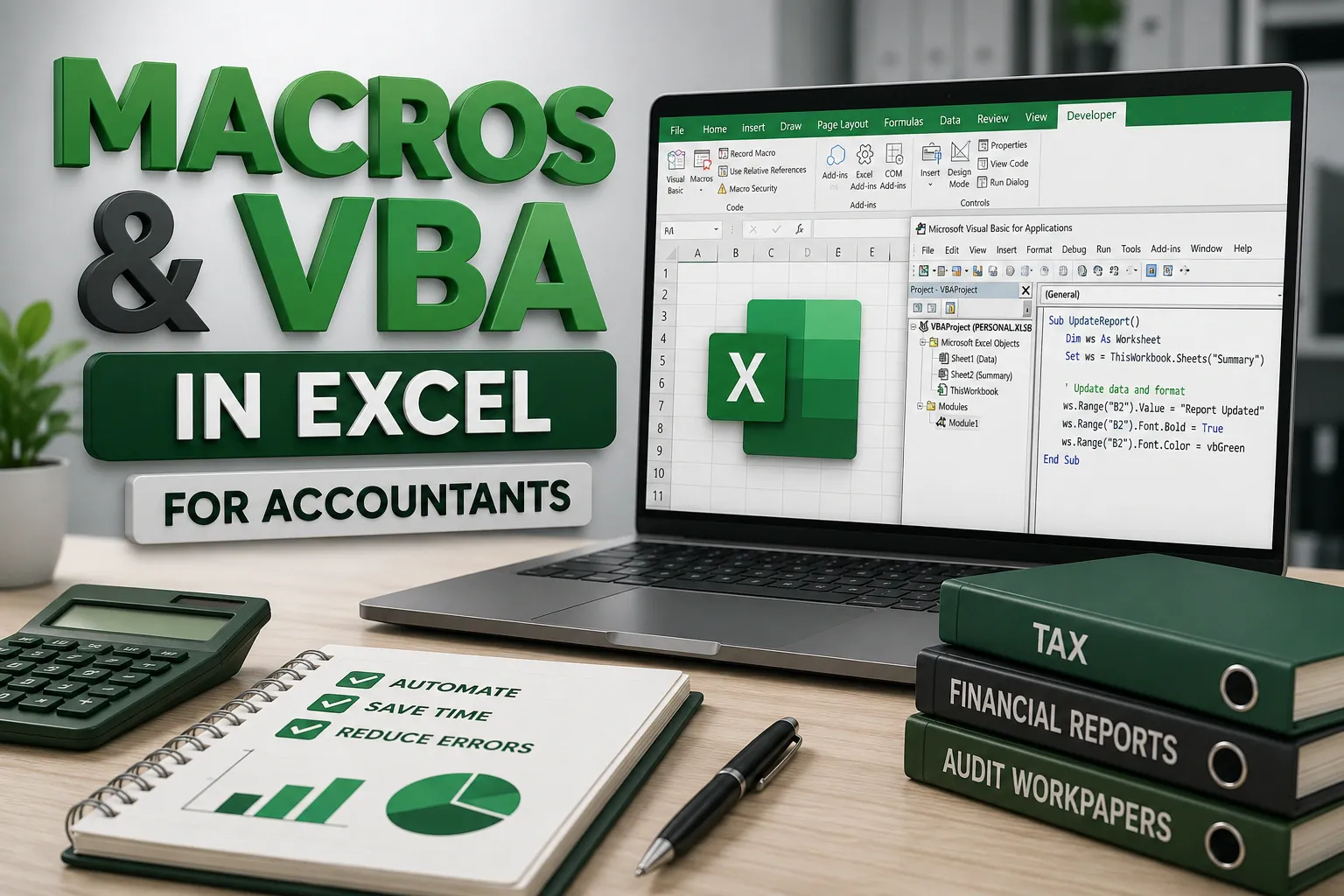
Macros and VBA (Visual Basic for Applications) are powerful tools in Excel that allow accountants to automate repetitive tasks, create custom functions, and build professional reporting systems. Learning even the basics of macros and VBA can save hours of manual work and improve accuracy in financial data management.
1. What Are Macros?
A macro is a recorded sequence of actions in Excel that can be replayed anytime with a single click. It’s perfect for repetitive tasks like formatting spreadsheets, generating reports, or updating data.
Example:
Imagine every month you need to:
- Bold headers in your expense sheet
- Apply currency formatting to amounts
- Adjust column widths
Instead of doing this manually, you can record a macro and run it every month to perform all steps automatically.
2. Recording a Macro
Steps to record a macro:
- Go to Developer → Record Macro.
- Name your macro, e.g.,
FormatExpenseSheet. - Perform the tasks you want to automate (format headers, adjust columns, apply formulas).
- Click Stop Recording.
Now, whenever you run the macro, Excel performs all recorded actions automatically.
3. What is VBA?
VBA is the programming language behind macros. While macros record actions, VBA allows accountants to write custom scripts to automate more complex tasks that can’t be recorded easily.
Example: Automatically calculate outstanding invoices and highlight unpaid amounts:
Sub HighlightUnpaidInvoices()
    Dim lastRow As Long
    lastRow = Cells(Rows.Count, "A").End(xlUp).Row
    Dim i As Long
    For i = 2 To lastRow
        If Cells(i, 4).Value = "Unpaid" Then
            Cells(i, 5).Interior.Color = RGB(255, 0, 0)
        End If
    Next i
End Sub
This VBA script checks each row in the invoice table and highlights the “Outstanding” column in red if the invoice is unpaid.
4. Benefits of Macros & VBA for Accountants
- Time-Saving: Automate repetitive tasks like monthly reporting.
- Consistency: Apply the same formatting, formulas, or calculations every time.
- Error Reduction: Minimize manual entry mistakes.
- Advanced Customization: Create custom functions, automate data imports, or generate automated dashboards.
- Dynamic Reporting: Update reports instantly when data changes.
5. Practical Accounting Example
Scenario: Monthly Expense Reporting
| Date | Category | Amount | Paid? |
|---|---|---|---|
| 01-Mar-26 | Rent | 5000 | Yes |
| 02-Mar-26 | Utilities | 300 | No |
| 03-Mar-26 | Supplies | 150 | No |
Tasks automated with macros/VBA:
- Format table headers and columns automatically
- Calculate total expenses with formulas
- Highlight unpaid amounts in red
- Generate a pivot table summarizing expenses by category
With one macro run, the accountant can prepare a fully formatted, analysis-ready sheet in seconds.
Macros and VBA give accountants superpowers in Excel, turning repetitive work into a few clicks while maintaining accuracy and professionalism. Learning the basics is the first step toward advanced automation and dynamic reporting.
Power Query & Data Import in Excel for Accountants
Power Query is one of the most powerful tools in Excel for accountants. It allows you to import, clean, and transform data from multiple sources quickly and efficiently. With Power Query, you can automate data preparation, combine data from different systems, and create reporting-ready datasets without manually copying and pasting information.
1. What is Power Query?
Power Query is a data connection technology that enables you to discover, connect, combine, and refine data from various sources. It eliminates repetitive tasks and ensures consistency when importing data for financial analysis.
Common Use Cases for Accountants:
- Importing bank statements in CSV format
- Combining multiple Excel files for monthly reports
- Cleaning imported data, such as removing duplicates or correcting formats
- Transforming data to match reporting templates
2. Importing Data Using Power Query
Example: Importing a CSV bank statement
- Go to Data → Get Data → From File → From Text/CSV
- Select the CSV file containing transactions
- Power Query Editor opens automatically, showing a preview of the data
- Clean and transform the data before loading it into Excel
Transformations you can do:
- Rename columns
- Change data types (e.g., Date, Currency, Text)
- Remove empty or duplicate rows
- Filter specific transactions
Once loaded, the data appears in Excel as a table. Any future updates to the CSV can be refreshed automatically.
3. Combining Multiple Files
Accountants often receive multiple files, like monthly statements or departmental expense sheets. Power Query allows you to combine them into a single dataset.
Example: Combining multiple Excel files:
- Go to Data → Get Data → From File → From Folder
- Select the folder containing all files
- Power Query automatically lists all files; choose Combine → Combine & Transform Data
- Transform and clean the combined data as needed
- Load into Excel
Now, all monthly files are merged into one table, ready for analysis.
4. Automated Data Cleaning
Power Query can automate repetitive cleaning steps:
- Remove extra spaces using
Trim - Correct inconsistent text (e.g., “rent” → “Rent”)
- Filter only relevant transactions
- Split columns into multiple fields (e.g., splitting “Date, Category” into separate columns)
These steps are saved in the query, so the next time you import a new file, all cleaning is done automatically.
5. Practical Accounting Example
Suppose an accountant receives monthly expense files for different departments:
| Date | Department | Category | Amount |
|---|---|---|---|
| 01-Mar-26 | HR | Supplies | 150 |
| 02-Mar-26 | IT | Utilities | 300 |
| 03-Mar-26 | HR | Rent | 5000 |
Steps Using Power Query:
- Import all department files using From Folder
- Remove duplicate rows
- Standardize category names using
Replace Values - Filter only relevant months
- Load combined data into Excel for reporting
Result: One clean, consolidated table ready for pivot tables, dashboards, and financial analysis.
6. Benefits for Accountants
- Time-Saving: Automate repetitive imports and cleaning tasks
- Consistency: Apply the same transformations every time
- Efficiency: Combine multiple files without manual copying
- Accuracy: Reduce errors from manual data handling
- Dynamic Updates: Refresh queries with new data instantly
Power Query revolutionizes accounting workflows by making data import and cleaning fast, consistent, and automated. It is an essential tool for accountants who work with multiple data sources and large datasets.
Power Pivot & Advanced Data Modeling for Accountants
Power Pivot is a powerful Excel tool that allows accountants to work with large datasets, create complex relationships, and perform advanced financial analysis. It goes beyond traditional Excel tables and pivot tables, enabling accountants to consolidate data from multiple sources, build dynamic models, and generate professional reports.
1. What is Power Pivot?
Power Pivot is an Excel add-in that allows you to create data models and perform calculations on large datasets efficiently. Unlike regular pivot tables, Power Pivot can handle millions of rows, support multiple tables, and create relationships between them.
Use Cases for Accountants:
- Consolidating financial data from multiple departments or companies
- Analyzing large transactional data without slowing down Excel
- Calculating complex financial metrics such as cumulative revenue, variances, or ratios
- Building dynamic dashboards for management reporting
2. Importing Data into Power Pivot
Power Pivot works with data from Excel tables, databases, or external sources.
Example: Importing multiple sheets from an Excel file:
- Go to Data → Get Data → From Other Sources → From Excel Workbook
- Select the file and choose the sheets or tables to import
- Load them into the Power Pivot data model
Once loaded, the data is ready for analysis and relationships can be created.
3. Creating Relationships Between Tables
Power Pivot allows you to connect multiple tables using common keys, similar to a database.
Example:
You have two tables:
Invoices Table
| Invoice ID | Client | Amount | Date |
|---|---|---|---|
| INV101 | John Smith | 1200 | 01-Mar-26 |
| INV102 | Sarah Lee | 950 | 02-Mar-26 |
Payments Table
| Payment ID | Invoice ID | Paid Amount | Payment Date |
|---|---|---|---|
| P001 | INV101 | 1200 | 03-Mar-26 |
| P002 | INV102 | 500 | 04-Mar-26 |
By creating a relationship between Invoice ID in both tables, you can analyze unpaid balances, payment trends, and client summaries using Power Pivot.
4. Using DAX for Advanced Calculations
DAX (Data Analysis Expressions) is the formula language for Power Pivot. It allows accountants to create calculated columns, measures, and advanced metrics.
Examples:
a. Total Revenue
TotalRevenue := SUM(Invoices[Amount])
b. Outstanding Balance
Outstanding := SUM(Invoices[Amount]) - SUM(Payments[Paid Amount])
c. Cumulative Revenue Over Time
CumulativeRevenue := CALCULATE(SUM(Invoices[Amount]), FILTER(ALL(Invoices[Date]), Invoices[Date] <= MAX(Invoices[Date])))
These calculations are dynamic and update automatically when new data is added.
5. Creating Advanced Reports
Power Pivot allows accountants to:
- Summarize financial performance across multiple dimensions (client, department, month)
- Generate pivot tables directly from the data model
- Combine metrics like revenue, expenses, and payments in a single report
- Build dashboards with slicers and timelines for interactive filtering
Example: Using the Invoices and Payments tables:
- Pivot table rows: Client
- Values: Total Revenue, Outstanding Balance
- Filter by Month using slicer
This instantly shows which clients have unpaid invoices for a specific period.
6. Benefits for Accountants
- Handles Large Datasets: Works with millions of rows efficiently
- Multiple Tables: Combine and analyze multiple sources without merging manually
- Advanced Calculations: Use DAX to calculate financial KPIs and ratios
- Dynamic Reporting: Refresh reports automatically when data changes
- Professional Insights: Build interactive dashboards for management
Power Pivot and advanced data modeling transform Excel from a spreadsheet tool into a professional accounting platform. Accountants can consolidate data, perform complex calculations, and deliver actionable insights efficiently and accurately.
Data Protection & Error Handling in Excel for Accountants
When working with financial data, accuracy and security are critical. Mistakes in formulas, accidental changes, or unauthorized access can lead to significant errors in accounting reports. Excel offers several tools and techniques for accountants to protect data and handle errors effectively.
1. Protecting Worksheets and Workbooks
Protecting your data prevents unauthorized editing while still allowing users to view or analyze it.
Steps:
- Protect a Sheet:
- Go to Review → Protect Sheet
- Set a password and select which actions are allowed, e.g., formatting or inserting rows
- Protect the Workbook:
- Go to Review → Protect Workbook
- Prevent structural changes like adding, deleting, or moving sheets
Example: Protecting a monthly expense sheet ensures formulas and totals cannot be accidentally overwritten by team members.
2. Locking Cells
You can lock only specific cells, leaving others editable. This is useful for templates where users enter data but formulas should remain intact.
Steps:
- Select the cells with formulas → Format Cells → Protection → Locked
- Unlock the input cells
- Protect the sheet
Example: Lock total expense cells while allowing users to enter individual transaction amounts.
3. Using Data Validation
Data validation ensures that only correct values are entered, reducing errors.
Examples:
- Restrict amounts to positive numbers:
Data → Data Validation → Allow: Whole Number → Minimum: 0 - Create drop-down lists for categories:
Data → Data Validation → Allow: List → Source: Rent, Utilities, Supplies
This ensures uniform entries and avoids mistakes like “rent” vs “Rent”.
4. Error Handling in Formulas
Errors in formulas can disrupt reports. Excel provides functions to manage errors effectively:
a. IFERROR
=IFERROR(A2/B2, 0)
- Returns 0 instead of showing
#DIV/0!if B2 is zero
b. ISERROR or ISNUMBER
- Check for errors or invalid data before performing calculations
Example: Avoid dividing by zero when calculating ratios:
=IF(ISERROR(A2/B2), "Check Data", A2/B2)
5. Auditing and Traceability
Excel provides tools to trace formulas and detect inconsistencies:
- Trace Precedents / Dependents: See which cells affect a formula
- Evaluate Formula: Step through complex formulas to check calculations
- Error Checking: Automatically highlights formula errors
Example: If a net profit formula shows an unexpected value, tracing precedents identifies which transaction caused the discrepancy.
6. Backup & Version Control
Regular backups and version control protect against data loss:
- Save multiple versions of your workbook with timestamps
- Use cloud storage like OneDrive or SharePoint for automatic backups
- Track changes to identify who modified data
Example: Maintain a backup of monthly financial reports before applying adjustments or importing new transactions.
7. Practical Accounting Scenario
Imagine a monthly invoice and expense sheet:
| Invoice | Client | Amount | Status |
|---|---|---|---|
| INV101 | John Smith | 1200 | Paid |
| INV102 | Sarah Lee | 950 | Unpaid |
| INV103 | Mark Davis | 1300 | Paid |
- Lock the Amount and Status formulas
- Use data validation for the Status column (Paid, Unpaid)
- Apply IFERROR to calculate outstanding balances
- Protect the sheet to prevent accidental changes
This ensures accurate, secure, and error-free reporting.
Data protection and error handling in Excel are essential for accountants. By locking formulas, validating inputs, using error-handling functions, and maintaining backups, you ensure that financial data remains accurate, secure, and reliable for decision-making.

